
Blackboard LTI Advantage Integration
Learn how to integrate Connect with Blackboard using LTI Advantage for course access and grade sync.
- Higher Education
- Customer Support
- Connect
- Instructor


Need Assistance?
For a personalized 1-to-1 support from our implementation team, schedule an appointment here.
If you are using Blackboard Original Course View, click here to skip to Original Course View instructions.
Blackboard Ultra Course View
Start by pairing your course...
Log into Blackboard and navigate to your course.
Click on Books & Tools in the left navigation.
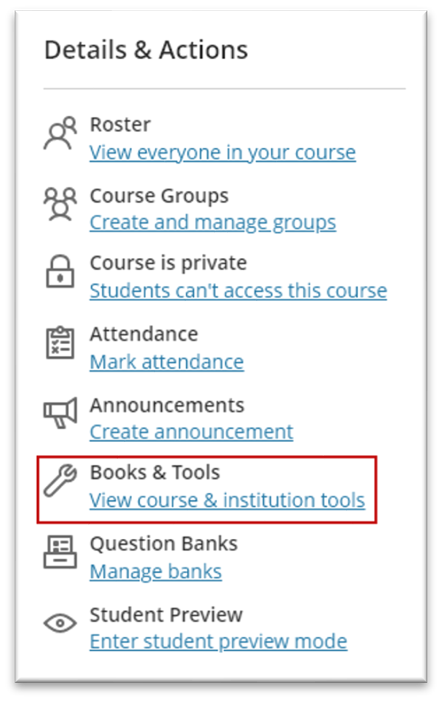
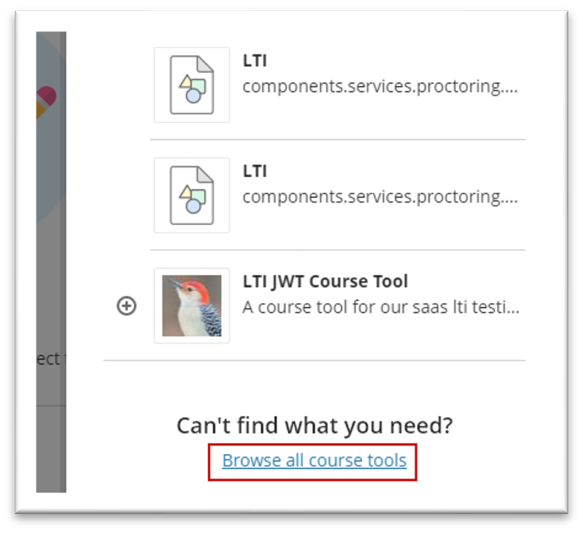
Scroll to the bottom of the right peek panel and click Browser all course tools.
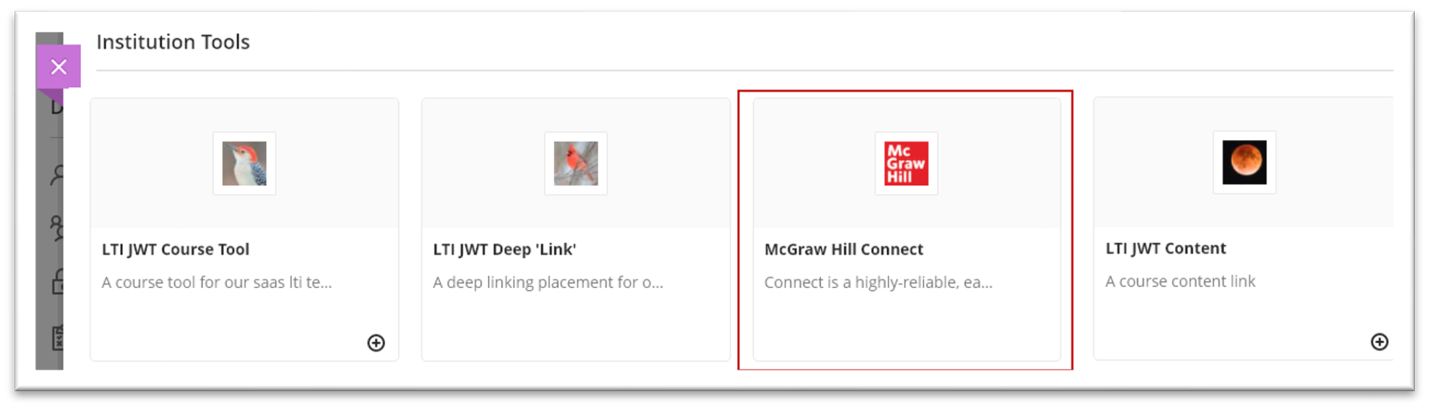
Locate McGraw Hill under Institution Tools and click on it. Note: Your institution may have named the tool differently.
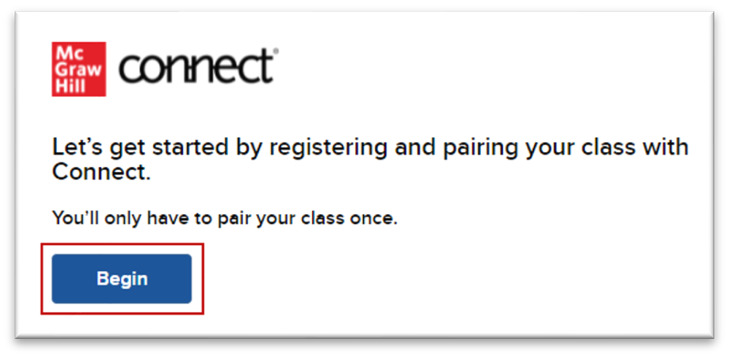
Click Begin.
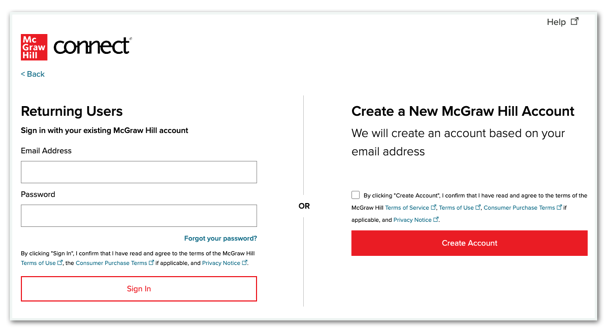
The next screen will depend on whether or not you already have a McGraw Hill Account associated with your institution's email address. If you already have an account, you'll be asked to enter your password and log in. If you're new to Connect, click on Create Account.
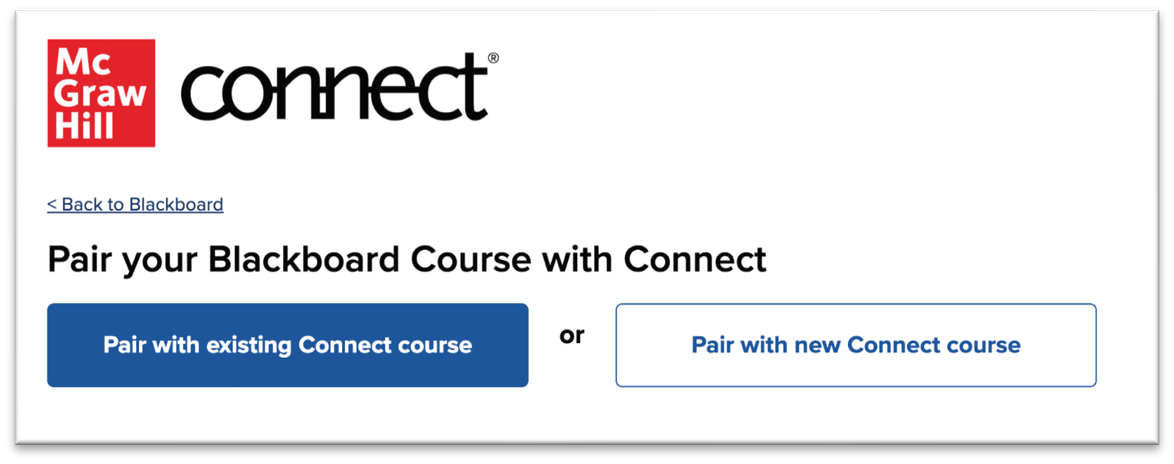
Click Pair with existing Connect course if you already have a course in your account to pair or choose Pair with new Connect course if you'd like to create a new course.
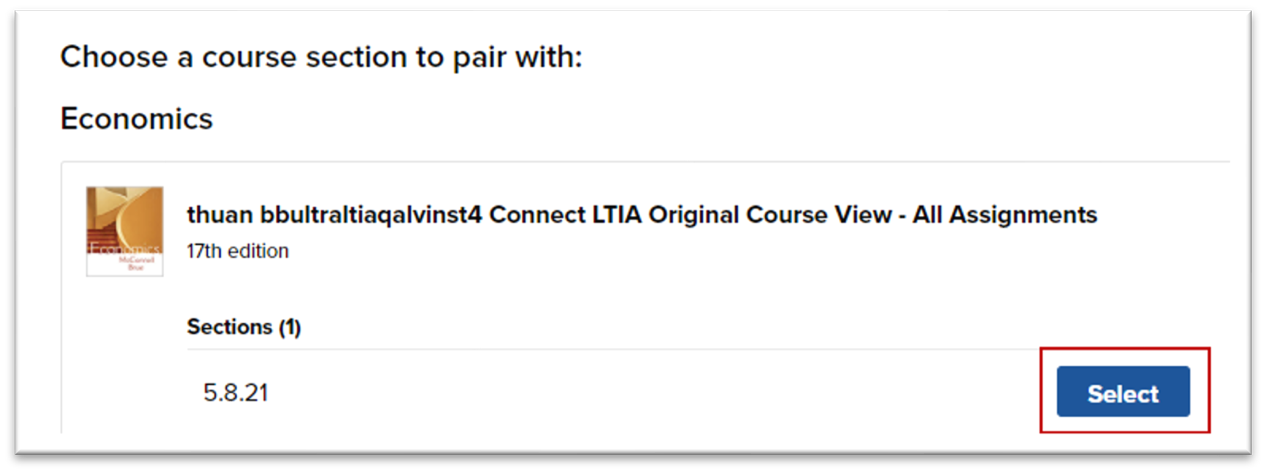
Locate the Connect section you want to pair and click Select or finish creating a new course.
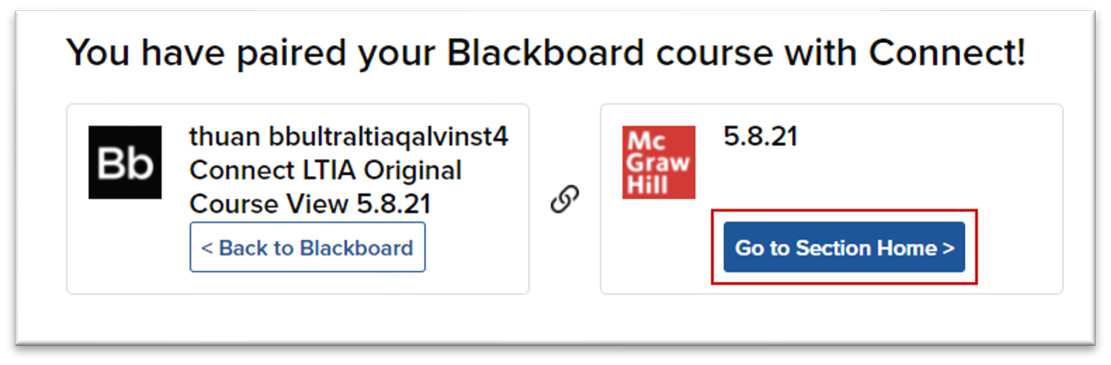
Click Go to Section Home.
Add and assign your assignments if you haven't already.
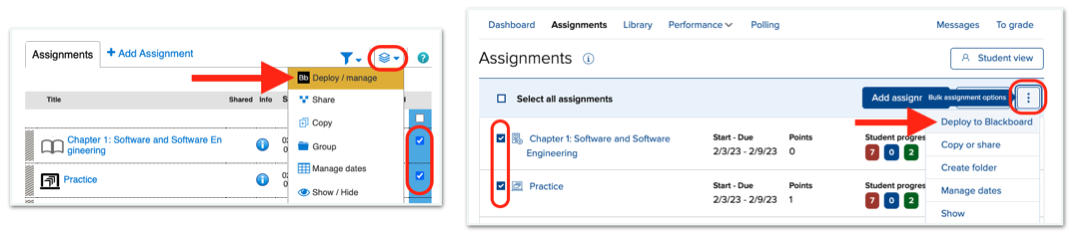
Select the assignments that you would like to deploy.
*Click on Deploy from the options menu.
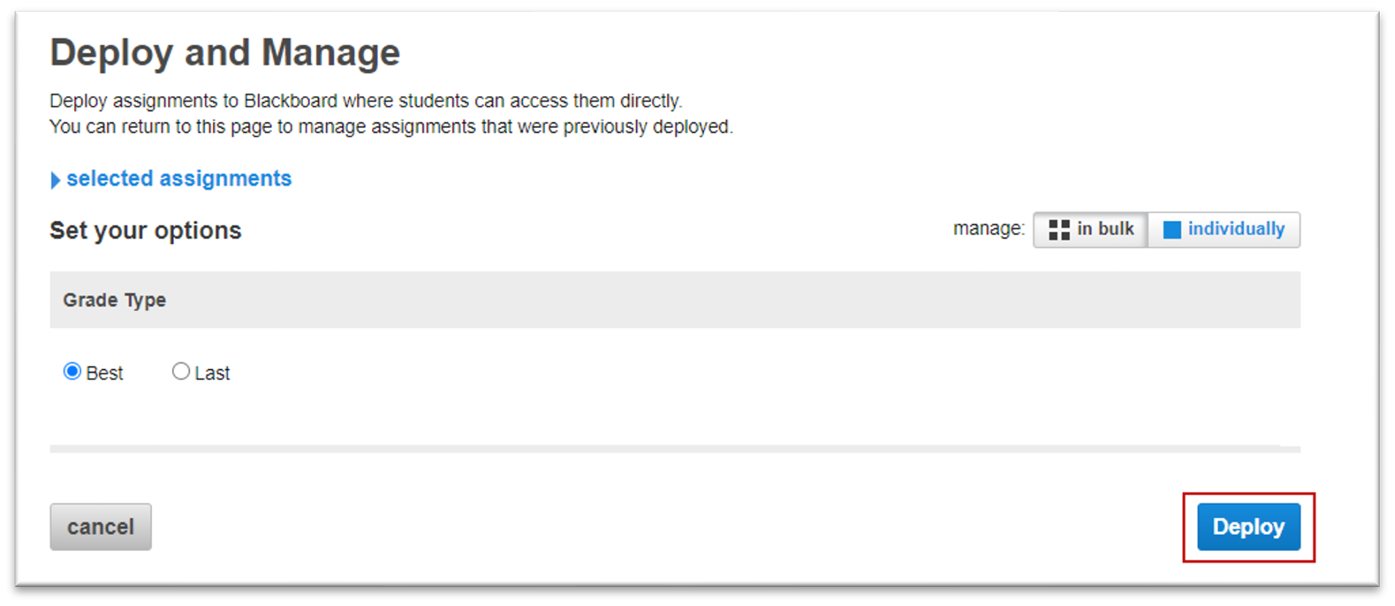
Choose which attempt score will sync with your school's grade book and click Deploy.
You should now be redirected to your school's website to finish the deployment.
Verify that your assignment is available in Blackboard.
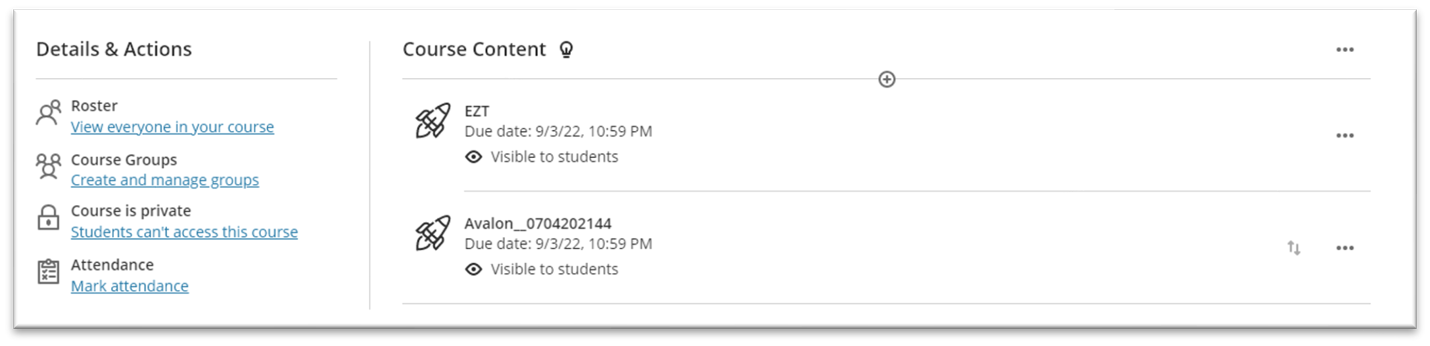
The assignments will appear in the location from which you launched Connect. All assignments will have the same icon in your Blackboard course. A grade column will not be added if the assignment is worth 0 points.
Please note that if you make any edits to assignments in Connect, we will attempt to send those updates to Blackboard. However, if the REST API is not configured at your institution, you may need to redeploy the assignment to Blackboard to update it. Redeploying an assignment will not duplicate any links or gradebook items.
* If you do not see the deploy options in Connect, please make sure you are launching Connect from Blackboard. Also, make sure you are using the Deep Link to launch Connect when you intend to deploy assignments. The Basic launch link does not support assignment deployment. The Basic launch tool will have a plus icon in the lower-bottom corner while the Deep Link will not.
Troubleshoot Assignment Deployment Issues
Click here if you encounter an issue deploying your assignments.
Troubleshoot Grade Sync Issues
Click here if you are experiencing issues with students' grades syncing.
Blackboard Original Course View

 Start by pairing your course...
Log in to Blackboard and navigate to your course. Click on Content in the left navigation.
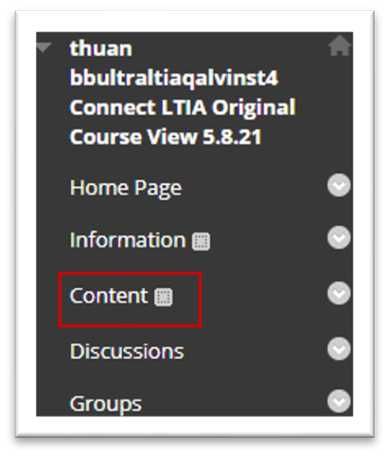
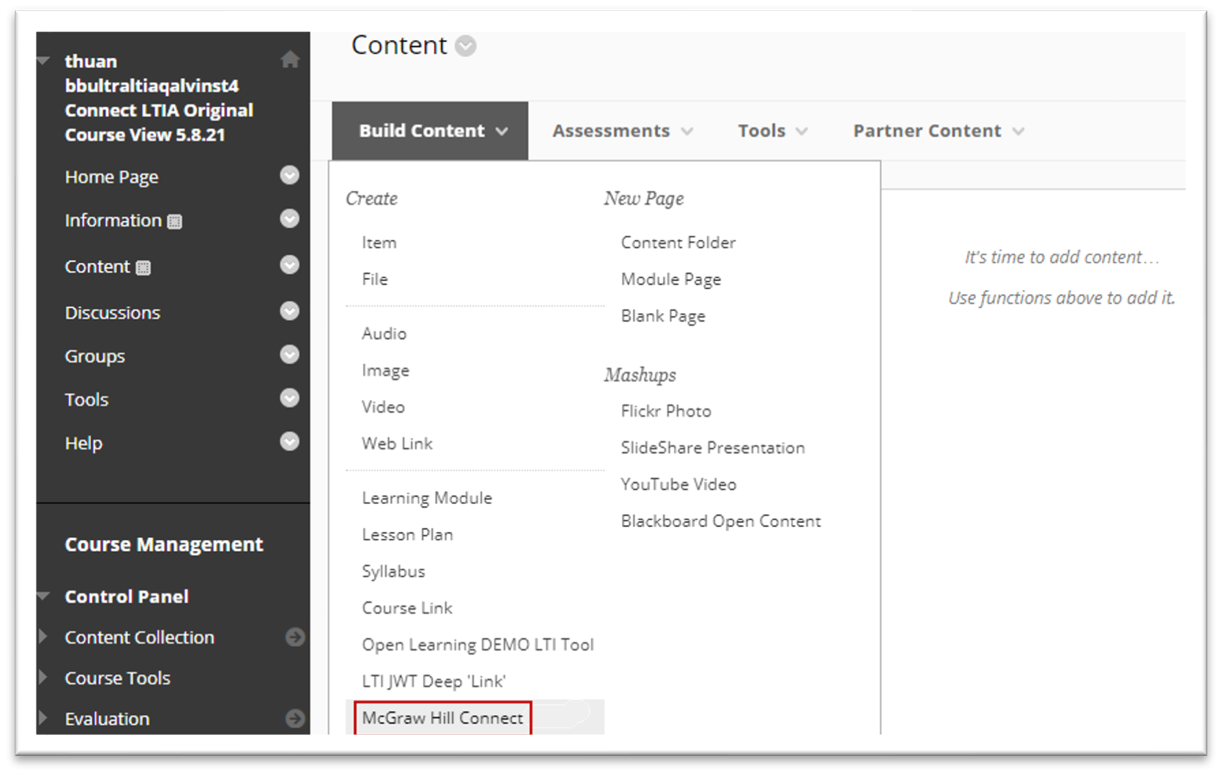
Click Build Content and select McGraw Hill. Note: Your institution may have named the tool differently.
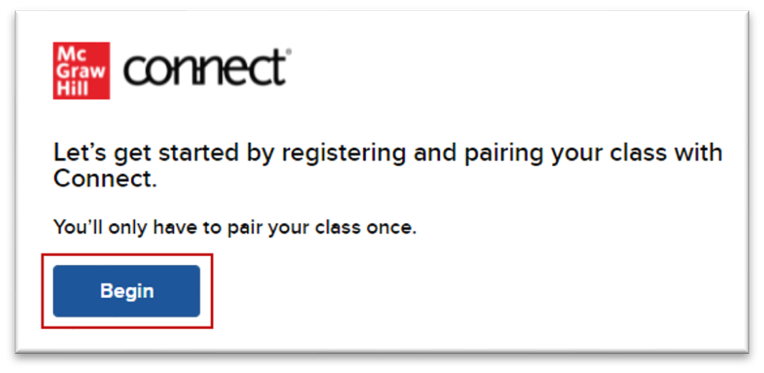
Click Begin.
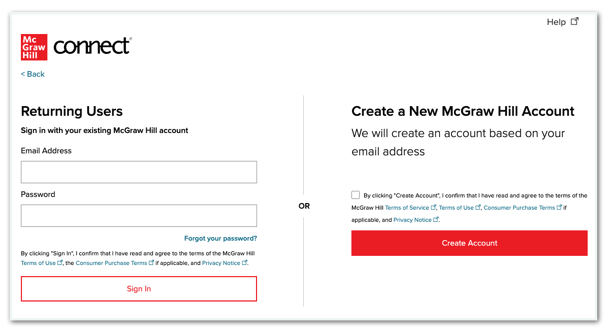
The next screen will depend on whether or not you already have a McGraw Hill Account associated with your institution's email address. If you already have an account, you'll be asked to enter your password and log in. If you're new to Connect, click on Create Account.
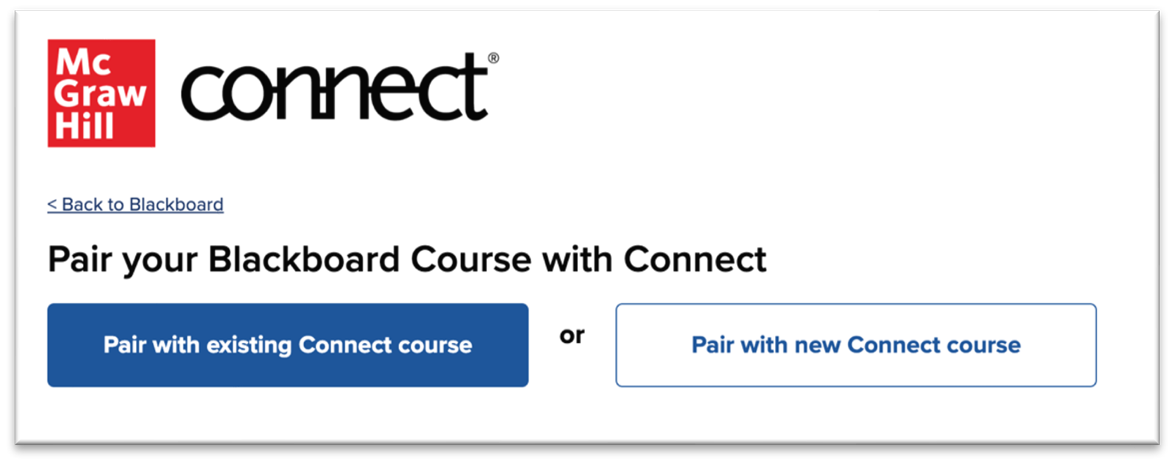
Click Pair with existing Connect course if you already have a course in your account to pair or choose Pair with new Connect course if you'd like to create a new course.
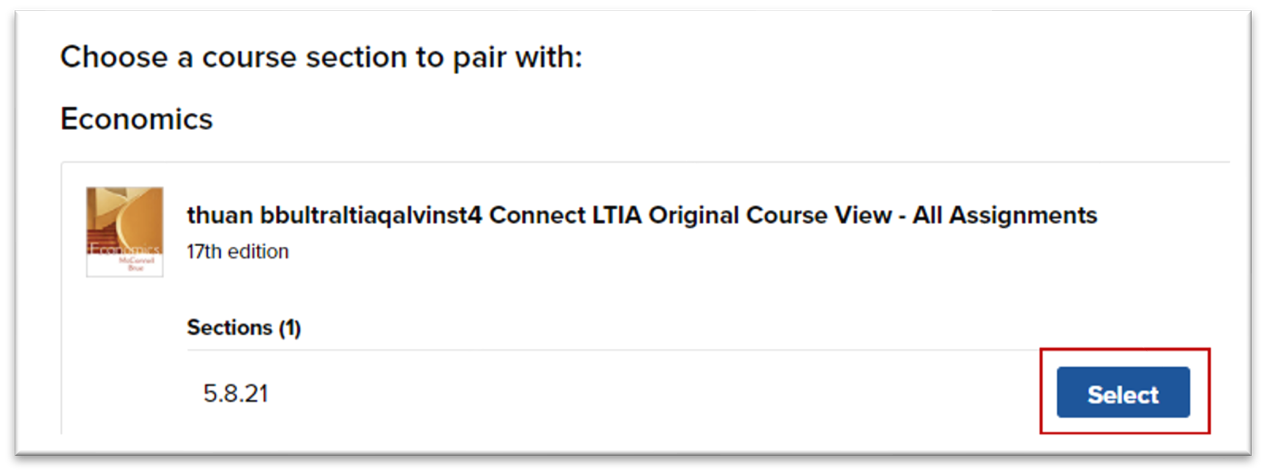
Locate the Connect section you want to pair and click Select or finish creating a new course.
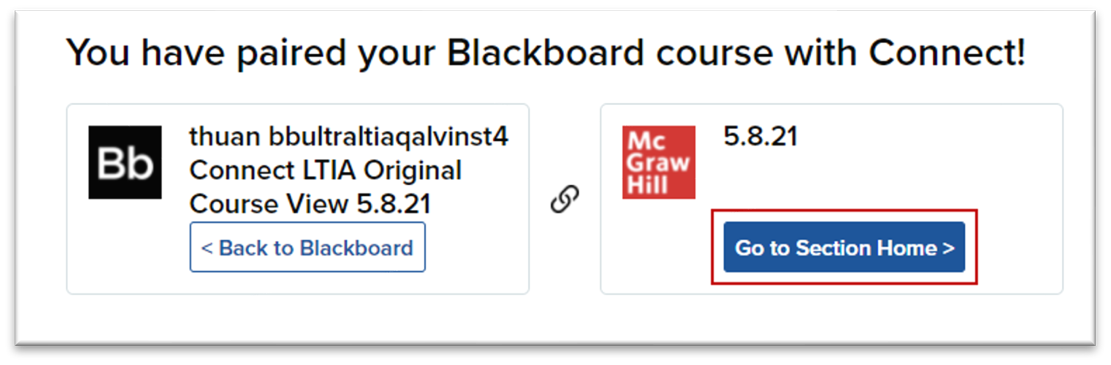
Click Go to Section Home.
Deploy your assignments...
Add and assign your assignments if you haven't already.
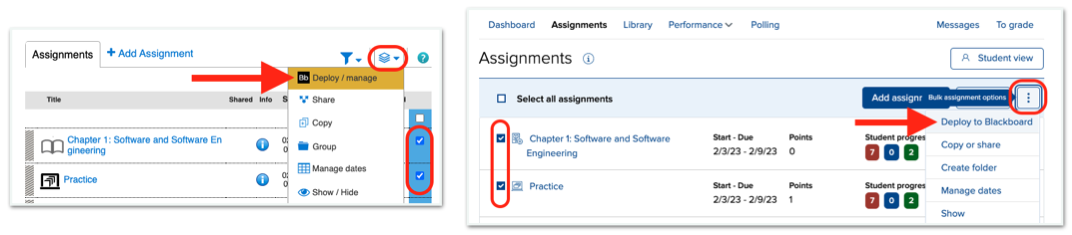
Select the assignments that you would like to deploy.
*Click on Deploy from the options menu.
Choose which attempt score will sync with your school's grade book and click Deploy.
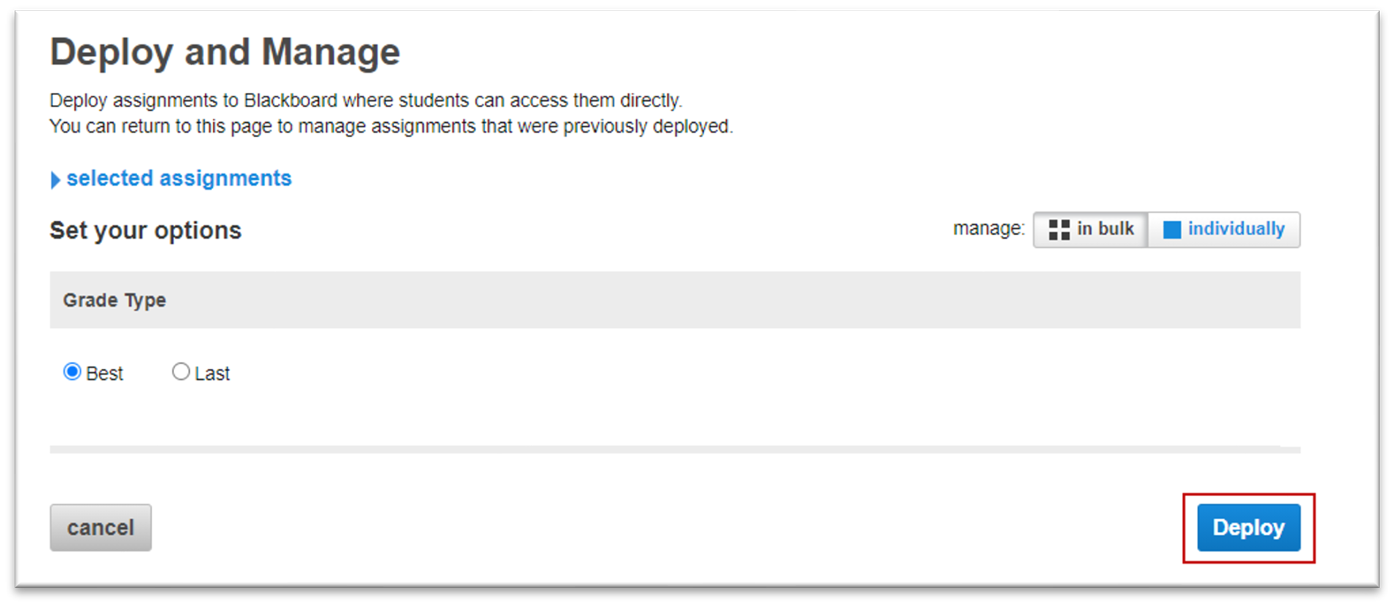
You should now be redirected to your school's website to finish the deployment.
Verify that your assignment is available in Blackboard.
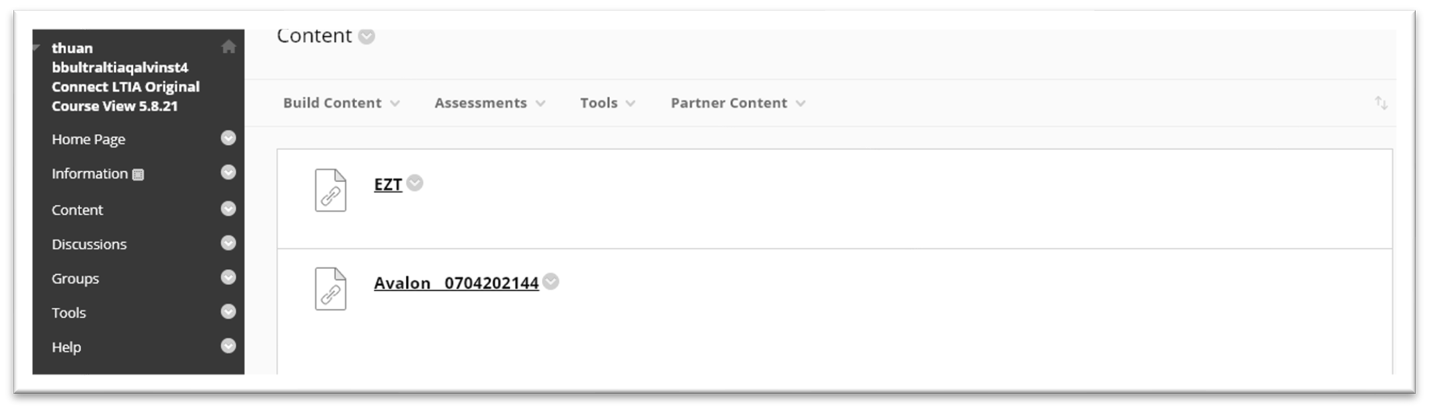
The assignments will appear in the location from which you launched Connect. All assignments will have the same icon in your Blackboard course. A grade column will not be added if the assignment is worth 0 points.
Please note that if you make any edits to assignments in Connect, we will attempt to send those updates to Blackboard. However, if the REST API is not configured at your institution, you may need to redeploy the assignment to Blackboard to update it. Redeploying an assignment will not duplicate any links or gradebook items.
* If you do not see the deploy options in Connect, please make sure you are launching Connect from Blackboard. Also, make sure you are using the Deep Link to launch Connect when you intend to deploy assignments. The Basic launch link does not support assignment deployment. The Deep Link will be available in the Build Content menu while the Basic link may be somewhere within your content area (if available).
Troubleshoot Assignment Deployment Issues
Click here if you encounter an issue deploying your assignments.
Troubleshoot Grade Sync Issues
Click here if you are experiencing issues with students' grades syncing.
Additional Resources
Add LTI Advantage Quick Link in your course
To allow quick access to Connect for you and your students, you can add a Connect LTI Advantage tool link to your course. However, assignments cannot be deployed when accessing Connect using this link. Please see this article for instructions.
Adding an eBook link for students in LTI Advantage
Click here to learn how to give your students quick access to the eBook.
