
Add LTI Advantage shortcut in Blackboard
Add a Connect tool link to a Blackboard course using LTI Advantage integration.
Tags
- Higher Education
- Customer Support
- Connect
- Instructor


Note:
- The Tool Placement configuration will only be available if your Blackboard administrator has configured it.
- The tool link is intended to allow quick access to the Connect home page. When launching Connect using this tool link, assignment deployment options will not be available.
Ultra Course View
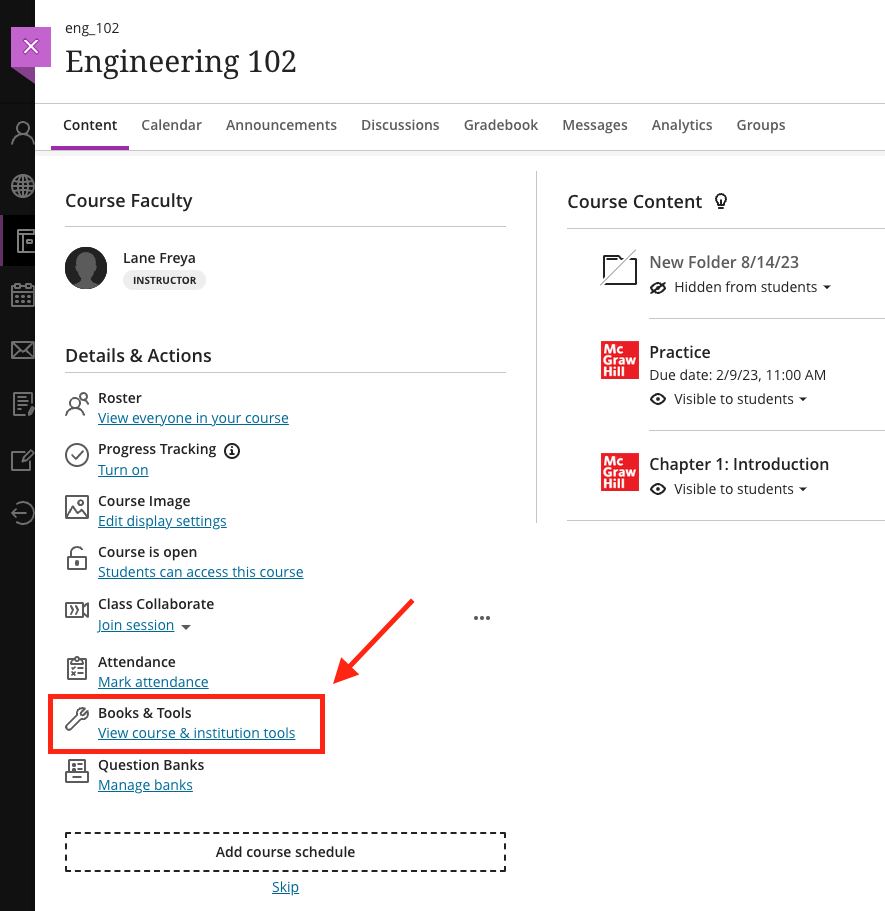
Select View Course and Institution Tools under Book & Tools from the left navigation of the section.
In the Books & Course Tools slider, find McGraw Hill Connect LTIA (this title may differ in your Blackboard instance) in the list of Available Tools.
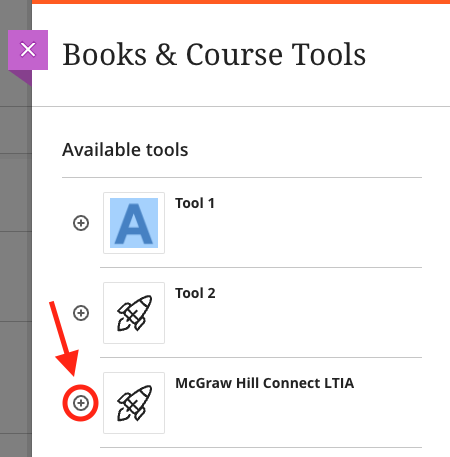
Select the Plus button on the left of the McGraw Hill Basic Launch tool.
The McGraw Hill Connect LTIA will appear in the content area allowing you to move it as needed.

You and your students can now use this tool link to quickly launch the Connect section home page.
Original Course View
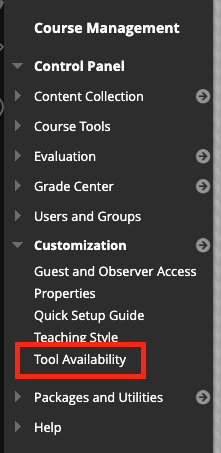
- Select Customization from the left navigation of a section.
- Select Tool Availability.

- Check the last box next to McGraw Hill Connect LTIA (this title may differ in your Blackboard instance).
- Click Submit at the bottom of the page.
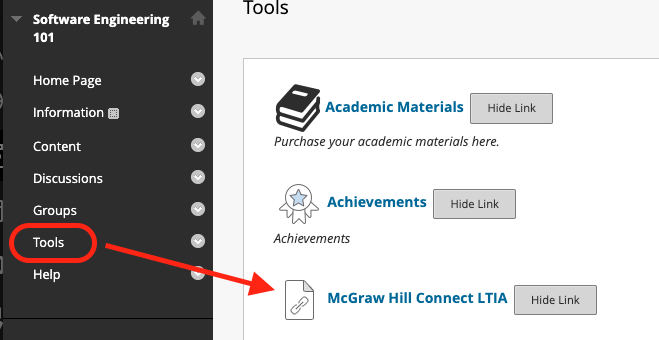
- The McGraw Hill Connect LTIA tool link will now appear under the course Tools.
You and your students can now use this tool link to quickly launch the Connect section home page.
