mcgraw hill social studies
ocr foundational skills kit
spotlight on music
illustrative math
actively learn
5 steps to a 5 - ap test prep
impact social studies
arrive math
music! its role
reveal math (k-12)
ap-edition
5-steps-to-a-5-test-prep
glencoe-health
teen-health
arrive-math
building-blocks
number-worlds
reading-laboratory
reading-mastery
actively-learn
mcgraw-hill-literacy
open-court-reading
studysync
reveal-math
illustrative-math
inspire-science
mcgraw-hill-science
impact
mh-social-studies
all-sorts
asi-se-dice
mcgraw-hill-cte
wonders
maravillas
music-its-role
my-math
networks
ocr-foundational-skills-kit
spotlight-on-music
mcgraw-hill-math
instructor
Programs & Solutions
Programs & Solutions/McGraw Hill Social Studies
Business Unit
Business Unit/PreK-12
Programs & Solutions/AP Edition
Programs & Solutions/AP Edition/AP Precalculus
Context
Context/Education Level
Context/Education Level/High School
Programs & Solutions/OCR Foundational Skills Kit
Context/Subject
Context/Subject/Science
Programs & Solutions/AP Edition/AP Biology
Programs & Solutions/AP Edition/AP Music Theory
Context/Integration Type
Context/Integration Type/SSO & Auto-Rostering
Programs & Solutions/Spotlight on Music
Programs & Solutions/Glencoe Health
Programs & Solutions/Glencoe Health/Glencoe Health 2022
Programs & Solutions/Open Court Reading
Programs & Solutions/Open Court Reading/Open Court Reading 2025
Programs & Solutions/Impact Social Studies
Programs & Solutions/Impact Social Studies/CA Impact 2019
Programs & Solutions/McGraw Hill Social Studies/FL Social Studies 2024 (K-12)
Context/Subject/World Languages
Programs & Solutions/Illustrative Math
Programs & Solutions/McGraw Hill CTE
Programs & Solutions/McGraw Hill CTE/CTE - Culinary Arts
Asset Format Type
Asset Format Type/Customer Support
Context/Curriculum Type
Context/Curriculum Type/Supplemental
Programs & Solutions/Actively Learn
Support Topics
Support Topics/User Guides & Account Management
Support Topics/User Guides & Account Management/User Guide
Programs & Solutions/AP Edition/AP Statistics
Programs & Solutions/McGraw Hill Science
Programs & Solutions/McGraw Hill Science/TX Science 2025 (K-12)
Programs & Solutions/Wonders
Programs & Solutions/Wonders/Wonders 2023 2020 2017
Programs & Solutions/AP Edition/AP Public Speaking
Context/Subject/Health
Programs & Solutions/5 Steps to a 5 - AP Test Prep
Programs & Solutions/Asi Se Dice
Programs & Solutions/Asi Se Dice/Asi se Dice 2024
Programs & Solutions/All Sorts
Programs & Solutions/All Sorts/All Sorts 2026 (K-5)
Context/Curriculum Type/Career & Technical Education
Programs & Solutions/Open Court Reading/Open Court Reading 2016, 2018, 2023
Programs & Solutions/McGraw Hill Literacy
Programs & Solutions/McGraw Hill Literacy/McGraw Hill Literacy Soar!
Programs & Solutions/McGraw Hill CTE/CTE - Agriculture
Support Topics/Tools & Product Integrations
Support Topics/Tools & Product Integrations/Google Classroom™
Context/Subject/Math
Programs & Solutions/McGraw Hill Math
Programs & Solutions/McGraw Hill Math/Texas Math
Context/Curriculum Type/AP, Honors & Electives
Programs & Solutions/AP Edition/AP Chemistry
Context/Curriculum Type/Intervention
Programs & Solutions/Building Blocks
Programs & Solutions/Building Blocks/Building Blocks 2024
Programs & Solutions/McGraw Hill CTE/CTE - Computing and Technology
Programs & Solutions/Arrive Math
Programs & Solutions/Open Court Reading/OCR Word Analysis Kit
Context/Curriculum Type/Core
Programs & Solutions/AP Edition/AP Language and Composition
Context/Subject/Literacy
Programs & Solutions/McGraw Hill CTE/CTE - Health Science
Programs & Solutions/AP Edition/AP History & Geography
Programs & Solutions/Inspire Science
Programs & Solutions/Inspire Science/Inspire Science 2020
Programs & Solutions/Music! Its Role
Programs & Solutions/Networks
Programs & Solutions/Networks/Networks 2018
Context/Subject/Visual & Performing Arts
Programs & Solutions/AP Edition/AP Computer Science
Programs & Solutions/McGraw Hill My Math
Programs & Solutions/McGraw Hill My Math/McGraw Hill My Math 2018
Context/Subject/Social Studies
Programs & Solutions/Reveal Math (K-12)
Programs & Solutions/Reveal Math (K-12)/CA Reveal Math (K-12)
Context/Education Level/Middle School
Programs & Solutions/McGraw Hill CTE/CTE - Early Childhood Education
Programs & Solutions/Maravillas
Programs & Solutions/Maravillas/Maravillas 2020 & 2017
Programs & Solutions/McGraw Hill Literacy/McGraw Hill Literacy Emerge!
Support Topics/Assessments & Reporting
Support Topics/Assessments & Reporting/Assignment Sync & Grade Passback
Context/Education Level/Preschool
Programs & Solutions/AP Edition/AP African American Studies
Programs & Solutions/McGraw Hill Science/FL Science 2025 (K-12)
Programs & Solutions/McGraw Hill CTE/CTE - Business, Marketing, and Finance
Context/Education Level/Elementary School
Programs & Solutions/Number Worlds
Programs & Solutions/Number Worlds/Number Worlds 2024
Programs & Solutions/McGraw Hill Literacy/McGraw Hill Literacy Summit!
Personas
Personas/School Educator
Personas/School Educator/Classroom Teacher
Programs & Solutions/Reading Laboratory
Programs & Solutions/Reading Laboratory/SRA Reading Laboratory 2025
Programs & Solutions/AP Edition/AP Economics
Programs & Solutions/Building Blocks/Building Blocks PreK 2025
Programs & Solutions/Wonders/Wonders Balanced Literacy 2016
Programs & Solutions/AP Edition/AP Psychology
Programs & Solutions/McGraw Hill Science/TN Science (K-12)
Programs & Solutions/StudySync
Programs & Solutions/StudySync/StudySync 2021
Programs & Solutions/Teen Health
Programs & Solutions/Teen Health/Teen Health 2021
Programs & Solutions/McGraw Hill CTE/CTE - Criminal Justice
Support Topics/Assessments & Reporting/Grades & Assignments
Programs & Solutions/Inspire Science/CA Inspire Science 2020
Programs & Solutions/Reading Mastery
Programs & Solutions/Reading Mastery/SRA Reading Mastery Transformations
prek-12
2026-03-24T18:54:10.529-03:00
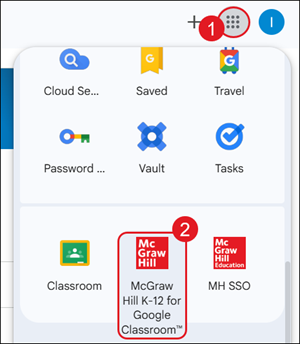
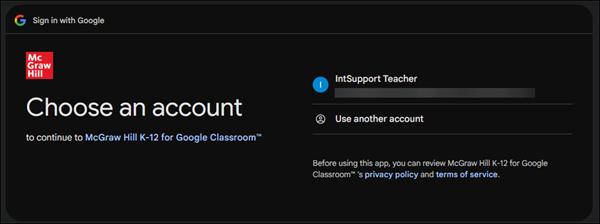
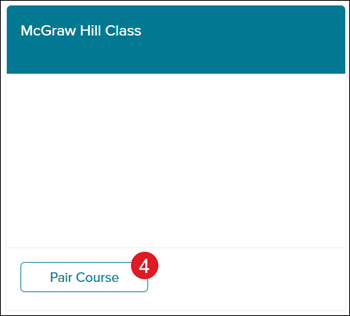
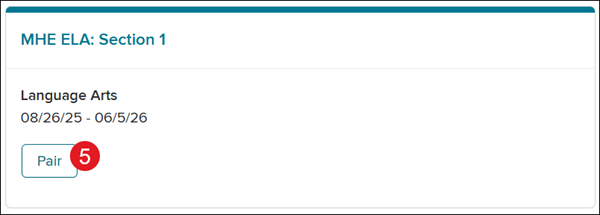
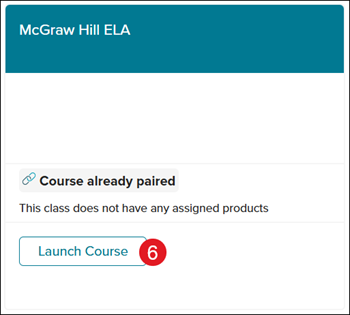
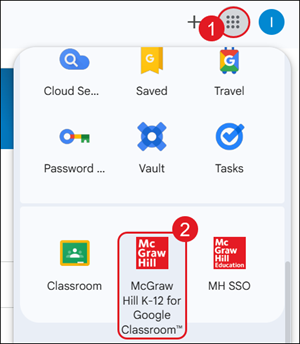
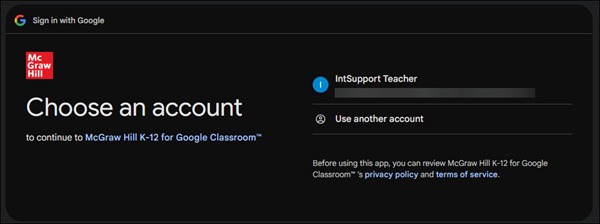
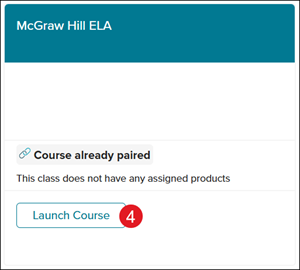
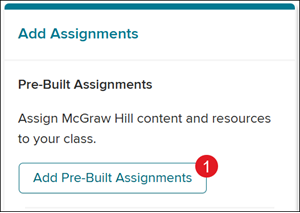
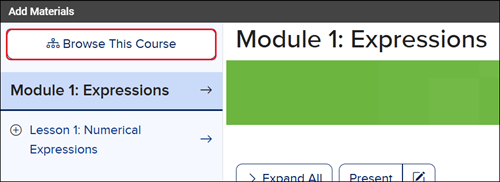
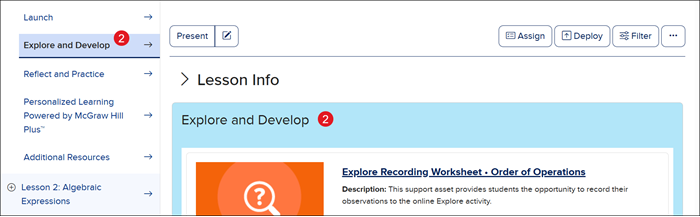
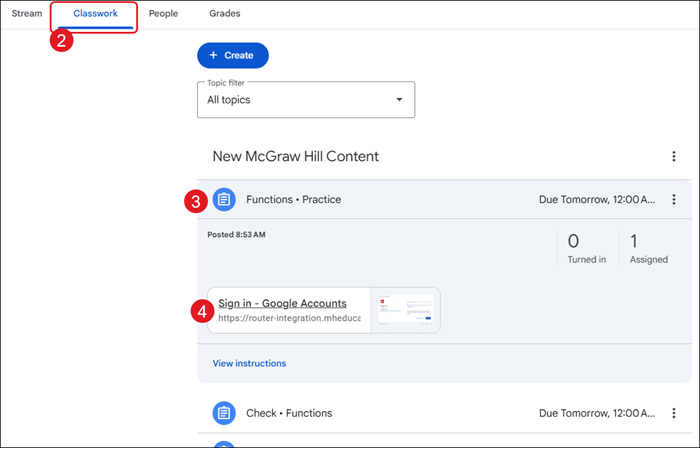
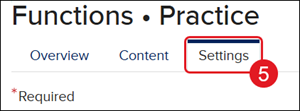
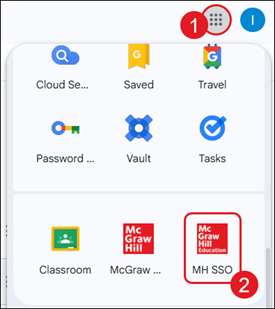
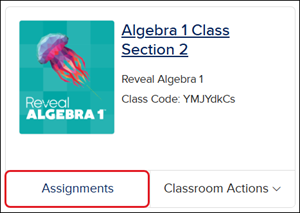
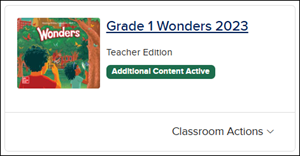
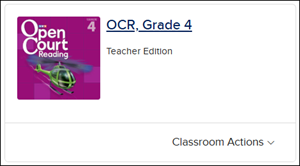
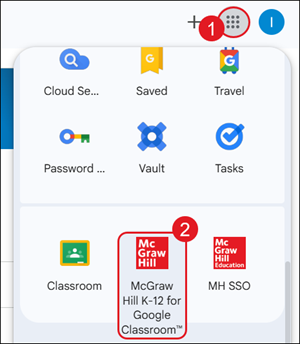
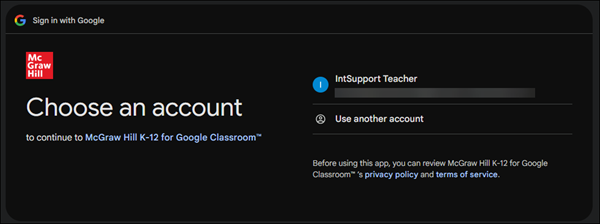
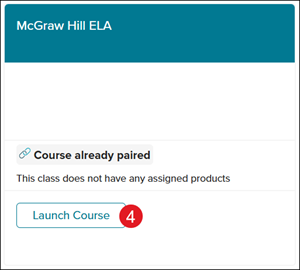
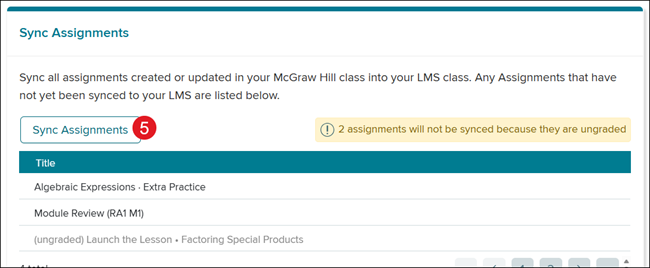
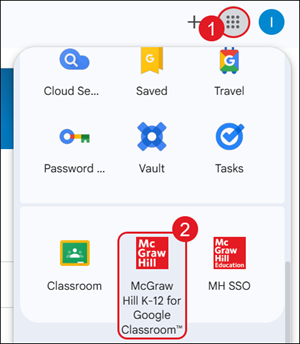
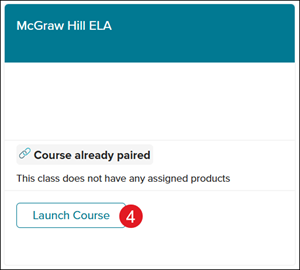
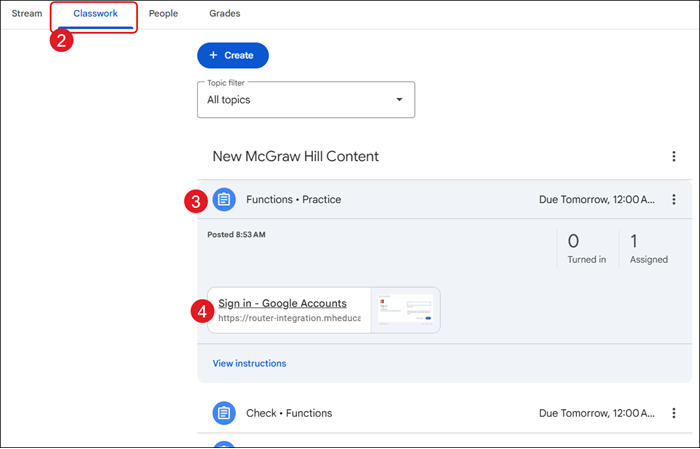
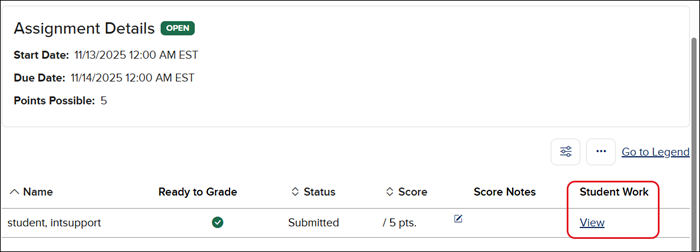
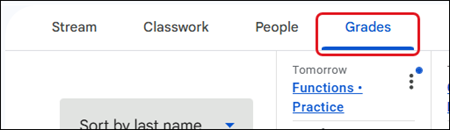
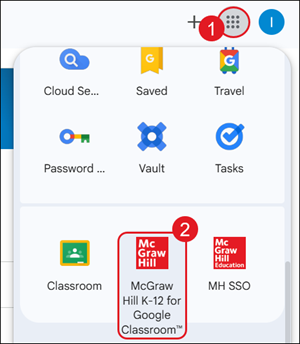
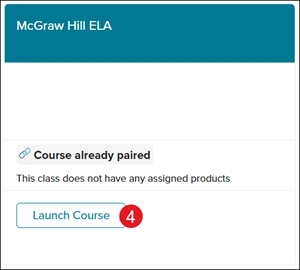
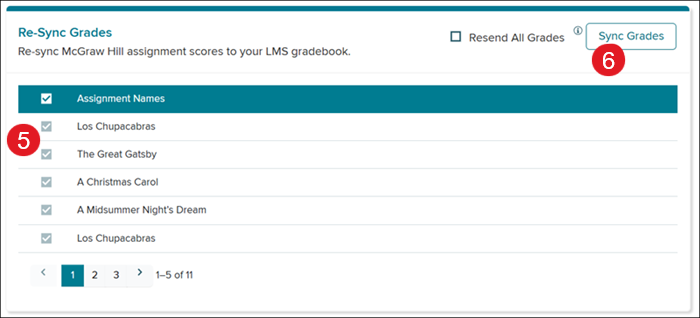
<p><a href="https://hub.mheducation.com/share/gfozmaal846p" target="_blank">View the demo in a separate tab.</a></p> <p><a href="https://hub.mheducation.com/share/0eqphrab4rgv" target="_blank">View the Spanish version of the demo.</a></p> <p><a href="https://youtu.be/o5wfEAdGR-Q">View a video walkthrough.</a></p> <p><a href="/content/dam/mhe/support/support-pdfs/dts-k12-pdfs/mh_asgpb_gc_full_process.pdf" target="_blank">View a PDF copy of the article.</a></p> <p> </p> <p>The <strong>McGraw Hill K-12 for Google Classroom™</strong> app syncs assignments and grades between the programs hosted on the McGraw Hill platform and your Google Classroom account.</p> <p>For <strong>Actively Learn</strong> specific steps, refer to the <a href="/content/mheducation/us/en/prek-12/support/knowledge/actively-learn-assignment-sync-and-grade-passback-with-google-classroom.html" target="_blank">Actively Learn Assignment Sync and Grade Passback with Google Classroom™</a> article.</p> <p>For <strong>StudySync</strong> specific steps, refer to the <a href="/content/mheducation/us/en/prek-12/support/knowledge/studysync-assignment-sync-and-grade-passback-with-google-classroom.html" target="_blank">StudySync Assignment Sync and Grade Passback with Google Classroom™</a> article.</p> <p> </p> <p><span><strong>IMPORTANT! </strong></span>The integration reviewed in this article is not the same as the “Share with Google Classroom” options available within the McGraw Hill platform, nor do these integrations work together. <strong>You cannot use both.</strong> Attempting to use both will prevent both from working properly.</p> <p> </p> <h2><span style="font-weight: normal;">Article Contents</span></h2> <p><a href="#class_pairing" target="_self">Class Pairing</a></p> <p style="margin-left: 40.0px;"><a href="#unpairing_classes" target="_self">Unpairing Classes</a></p> <p><a href="#create_assignments" target="_self">Create Assignments</a></p> <p style="margin-left: 40.0px;"><a href="#prebuilt_assignments" target="_self">Pre-Built Assignments</a></p> <p style="margin-left: 40.0px;"><a href="#custom_assignments" target="_self">Custom Assignments</a></p> <p style="margin-left: 40.0px;"><a href="#view_assignments" target="_self">View Assignments</a></p> <p style="margin-left: 40.0px;"><a href="#adjust_settings" target="_self">Adjust Assignment Settings</a></p> <p style="margin-left: 40.0px;"><a href="#resync_assignments" target="_self">Resync Assignments</a></p> <p><a href="#deep_linking" target="_self">Deep-Linking Assets and Resources</a></p> <p><a href="#grade_assignments" target="_self">Grade Completed Assignments</a></p> <p style="margin-left: 40.0px;"><a href="#resync_grades" target="_self">Resync Grades</a></p> <p><a href="#troubleshooting_tips" target="_self">Troubleshooting Tips</a></p> <p> </p> <h3><a id="class_pairing"></a>Class Pairing</h3> <p>Prior to syncing assignments and grades between your McGraw Hill classes and Google Classroom, you need to pair your class(es). Your McGraw Hill class is automatically generated by your district’s nightly roster file sent to McGraw Hill.</p> <p>1. Click on the <strong>Google apps</strong> icon at the top-right of the page.</p> <p>2. Click on the <strong>McGraw Hill K-12 for Google Classroom™</strong> app.</p> <p><strong>Note:</strong> Installation of this app is completed by your District Administrator. If you do not see the app, please reach out to your District Administrator or Curriculum Coordinator.</p> <p><img alt="A screenshot of a phoneAI-generated content may be incorrect." src="/content/dam/mhe/support/support-images/migrated/rtaImage--1905462908.jpeg" height="281" width="245" data-assetref="rtaImage--1905462908-1777037405943"></p> <p>3. If prompted, select the Google account you would like to use.</p> <p><img alt="A screenshot of a computerAI-generated content may be incorrect." src="/content/dam/mhe/support/support-images/migrated/rtaImage--1905465226.jpeg" height="180" width="482" data-assetref="rtaImage--1905465226-1777037405943"></p> <p>4. Click the <strong>Pair Course</strong> button on the class tile.</p> <p><img alt="A screenshot of a computerAI-generated content may be incorrect." src="/content/dam/mhe/support/support-images/migrated/rtaImage--1905496382.jpeg" height="248" width="274" data-assetref="rtaImage--1905496382-1777037405943"></p> <p>5. Click the <strong>Pair</strong> button.</p> <p><span><strong>Important!</strong></span> Make sure to only click Pair on the course tile that matches the class you selected.</p> <p><img alt="A white rectangular frame with blue and green borderAI-generated content may be incorrect." src="/content/dam/mhe/support/support-images/migrated/rtaImage--1905498220.jpeg" height="178" width="497" data-assetref="rtaImage--1905498220-1777037405943"></p> <p> </p> <p><img src="/content/dam/mhe/support/support-images/migrated/rtaImage--1905497494.jpeg" width="144" height="143" data-assetref="rtaImage--1905497494-1777037405943"></p> <p><span><strong>Stop and Double Check!</strong></span> Take time to double check and ensure your class pairings are correct before moving on. Incorrect class pairings, and any resulting issues, is a common issue.</p> <p> </p> <p>6. Click the <strong>Launch Course</strong> button to create assignments.</p> <p><img alt="A screenshot of a computerAI-generated content may be incorrect." src="/content/dam/mhe/support/support-images/migrated/rtaImage--1905496994.jpeg" height="244" width="271" data-assetref="rtaImage--1905496994-1777037405943"></p> <p> </p> <h3><a id="unpairing_classes"></a>Unpairing Classes</h3> <p>If a class has been paired by mistake and/or incorrectly, you can unpair it. Only classes paired in error should be unpaired.</p> <p><strong>Note:</strong> McGraw Hill content and assignments will not launch from Google Classroom if you unpair the class.</p> <p><span><strong>Important! </strong></span>If a Google Classroom class is deleted prior to unpairing it from the McGraw Hill class, you will not be able to fully unpair it. You <strong><em>MUST</em></strong> first unpair the classes <strong>before</strong> deleting or unlinking the Google Classroom class. If you deleted a Google Classroom class before unpairing it, you will need to contact our <a target="_blank" href="https://www.mheducation.com/prek-12/support.html#teacher-contact">DTS Customer Support</a> team.</p> <p>1. Click on the <strong>Google apps</strong> icon at the top-right of the page.</p> <p>2. Click on the <strong>McGraw Hill K-12 for Google Classroom™</strong> app.</p> <p><strong>Note:</strong> Installation of this app is completed by your District Administrator. If you do not see the app, please reach out to your District Administrator or Curriculum Coordinator.</p> <p><img alt="A screenshot of a phoneAI-generated content may be incorrect." src="/content/dam/mhe/support/support-images/migrated/rtaImage--1905496408.jpeg" height="312" width="272" data-assetref="rtaImage--1905496408-1777037405943"></p> <p>3. If prompted, select the Google account you would like to use.</p> <p><img alt="A screenshot of a computerAI-generated content may be incorrect." src="/content/dam/mhe/support/support-images/migrated/rtaImage--1905459710.jpeg" height="182" width="488" data-assetref="rtaImage--1905459710-1777037405943"></p> <p>4. Click the <strong>Launch Course</strong> button on the class tile.</p> <p><img alt="A screenshot of a computerAI-generated content may be incorrect." src="/content/dam/mhe/support/support-images/migrated/rtaImage--1905499427.jpeg" height="270" width="300" data-assetref="rtaImage--1905499427-1777037405943"></p> <p>5. Click the <strong>Unpair</strong> button.</p> <p><img alt="A screenshot of a computerAI-generated content may be incorrect." src="/content/dam/mhe/support/support-images/migrated/rtaImage--1905496483.jpeg" height="183" width="450" data-assetref="rtaImage--1905496483-1777037405943"></p> <p> </p> <h3><a id="create_assignments"></a>Create Assignments</h3> <p>1. Click on the <strong>Google apps</strong> icon at the top-right of the page.</p> <p>2. Click on the <strong>McGraw Hill K-12 for Google Classroom™</strong> app.</p> <p><strong>Note:</strong> Installation of this app is completed by your District Administrator. If you do not see the app, please reach out to your District Administrator or Curriculum Coordinator.</p> <p><img alt="A screenshot of a phoneAI-generated content may be incorrect." src="/content/dam/mhe/support/support-images/migrated/rtaImage--1905462053.jpeg" height="296" width="258" data-assetref="rtaImage--1905462053-1777037405943"></p> <p>3. If prompted, select the Google account you would like to use.</p> <p><img alt="A screenshot of a computerAI-generated content may be incorrect." src="/content/dam/mhe/support/support-images/migrated/rtaImage--1905495825.jpeg" height="156" width="418" data-assetref="rtaImage--1905495825-1777037405943"></p> <p>4. Click the <strong>Launch Course</strong> button on the class tile.</p> <p><img alt="A screenshot of a computerAI-generated content may be incorrect." src="/content/dam/mhe/support/support-images/migrated/rtaImage--1905495907.jpeg" height="270" width="300" data-assetref="rtaImage--1905495907-1777037405943"></p> <p> </p> <h3><a id="prebuilt_assignments"></a>Pre-Built Assignments</h3> <p>1. On the<strong> Add Assignments</strong> tile, click the <strong>Add Pre-Built Assignments</strong> button.</p> <p><img alt="A screenshot of a computer screenAI-generated content may be incorrect." src="/content/dam/mhe/support/support-images/migrated/rtaImage--1905461048.jpeg" height="206" width="291" data-assetref="rtaImage--1905461048-1777037405943"></p> <p>The last selected Chapter/Unit/Lesson will open by default. Click the <strong>Browse This Course </strong>button to navigate to a different location within the program.</p> <p><img alt="A screenshot of a computerAI-generated content may be incorrect." src="/content/dam/mhe/support/support-images/migrated/rtaImage--1905495964.jpeg" height="182" width="500" data-assetref="rtaImage--1905495964-1777037405943"></p> <p>2. Click on a <strong>blade </strong>or click on an option in the <strong>Course Navigation Panel</strong> on the left to view the available resources.</p> <p><img alt="A screenshot of a computerAI-generated content may be incorrect." src="/content/dam/mhe/support/support-images/migrated/rtaImage--1905496804.jpeg" height="208" width="672" data-assetref="rtaImage--1905496804-1777037405944"></p> <p>3. Click the <strong>Assign </strong>button on a resource tile to assign an individual resource.</p> <p>Click the <strong>Assign </strong>(A) button at the top-right of the page to assign multiple resources at one time.</p> <p><img alt="A screenshot of a computerAI-generated content may be incorrect." src="/content/dam/mhe/support/support-images/migrated/rtaImage--1905500539.jpeg" height="302" width="609" data-assetref="rtaImage--1905500539-1777037405944"></p> <p>For in-depth instruction on how to create individual assignments, refer to the <a target="_blank" href="/content/mheducation/us/en/prek-12/support/knowledge/open-learning---create-assignments.html">Create Open Learning Assignments</a> article.</p> <p>For in-depth instruction on how to create bulk assignments, refer to the <a target="_blank" href="/content/mheducation/us/en/prek-12/support/knowledge/open-learning---create-bulk-assignments.html">Create Bulk Open Learning Assignments</a> article.</p> <p>Once you've successfully created all the assignments you want, close the tab to navigate back to Google Classroom.</p> <p> </p> <h3><a id="custom_assignments"></a>Custom Assignments</h3> <p>1. On the<strong> Add Assignments</strong> tile, click the <strong>Create Custom Assignments</strong> button.</p> <p><img alt="A screenshot of a computerAI-generated content may be incorrect." src="/content/dam/mhe/support/support-images/migrated/rtaImage--1905494303.jpeg" height="152" width="300" data-assetref="rtaImage--1905494303-1777037405944"></p> <p>2. Select the <strong>Assignment Type</strong>.</p> <p><img alt="A screenshot of a computerAI-generated content may be incorrect." src="/content/dam/mhe/support/support-images/migrated/rtaImage--1905495592.jpeg" height="344" width="629" data-assetref="rtaImage--1905495592-1777037405944"></p> <p>For in-depth instruction on creating <strong>Instruction</strong>, <strong>Submission</strong>, and <strong>External Tool</strong> assignments, refer to the <a href="/content/mheducation/us/en/prek-12/support/knowledge/open-learning---create-assignments.html" target="_blank">Create Open Learning Assignments</a> article.</p> <p>For in-depth instruction on creating <strong>Online Questions</strong> assignments, refer to the <a href="/content/mheducation/us/en/prek-12/support/knowledge/open-learning-platform-assign-and-grade-assessments.html" target="_blank">Assign McGraw Hill Assessments</a> article.</p> <p>For in-depth instruction on creating <strong>Personalized Learning/SmartBook/LearnSmart</strong> assignments, refer to the <a href="/content/mheducation/us/en/prek-12/support/knowledge/create-smartbook-or-learnsmart-assignments.html" target="_blank">Create Open Learning SmartBook® or LearnSmart® Assignments</a> article.</p> <p><strong>Note:</strong> Personalized Learning/SmartBook/LearnSmart is only available for select programs.</p> <p>Once you've successfully created all the assignments you want, close the tab to navigate back to Google Classroom.</p> <p> </p> <h3><a id="view_assignments"></a>View Assignments</h3> <p>1. From your <strong>Classroom</strong> page, click on the class name.</p> <p>2. Click on <strong>Classwork</strong>.</p> <p>3. Click on the assignment blade to expand.</p> <p>4. Click the <strong>Sign in – Google Accounts</strong> button.</p> <p><img alt="A screenshot of a computerAI-generated content may be incorrect." src="/content/dam/mhe/support/support-images/migrated/rtaImage--1905494946.jpeg" height="373" width="582" data-assetref="rtaImage--1905494946-1777037405944"></p> <p>The assignment will open in a new tab on the my.mheducation.com site.</p> <p><strong>Note:</strong> It may take 2-3 minutes for assignments to appear for students and before the assignment can be successfully launched within Google Classroom. If you attempt to launch the assignment too quickly after creation, both students and teachers will receive a <a href="#error_message" target="_self">"CI2" error message</a>.</p> <p> </p> <h3><a id="adjust_settings"></a>Adjust Assignment Settings</h3> <p><span><strong>Important! </strong></span>If you need to later make adjustments to the settings of an assignment, you must complete these changes within the McGraw Hill platform directly, or by launching the assignment as a teacher in Google Classroom. If you attempt to make assignment edits within Google Classroom directly, they will not be reflected within McGraw Hill and may result in stopping the assignment from functioning in Google Classroom.</p> <p>1. From your <strong>Classroom</strong> page, click on the class name.</p> <p>2. Click on <strong>Classwork</strong>.</p> <p>3. Click on the assignment blade to expand.</p> <p>4. Click the <strong>Sign in – Google Accounts</strong> button.</p> <p><img alt="A screenshot of a computerAI-generated content may be incorrect." src="/content/dam/mhe/support/support-images/migrated/rtaImage--1905494549.jpeg" height="379" width="591" data-assetref="rtaImage--1905494549-1777037405944"></p> <p>The assignment will open in a new tab on the my.mheducation.com site.</p> <p>5. Click the <strong>Settings</strong> tab (for Open Learning programs).</p> <p><img alt="A close-up of a screenAI-generated content may be incorrect." src="/content/dam/mhe/support/support-images/migrated/rtaImage--1905494581.jpeg" height="100" width="268" data-assetref="rtaImage--1905494581-1777037405944"></p> <p>For <em>Wonders</em>, refer to the <a href="https://www.mheducation.com/prek-12/support/knowledge/wonders-2020-assignment-manager.html" target="_blank">Manage Assignments in Wonders/Maravillas</a> article for steps on making edits to assignment settings.</p> <p>6. Make preferred changes to the settings.</p> <p><strong>Note:</strong> Depending on the assignment type, certain setting options may not be available as they were when first creating the assignment.</p> <p>7. Click the <strong>Save</strong> button.</p> <p> </p> <p><strong>Alternative Option: Edit from McGraw Hill Platform</strong></p> <p>1. Click on the <strong>Google apps</strong> icon at the top-right of the page.</p> <p>2. Click on the <strong>McGraw Hill SSO</strong> app.</p> <p><img alt="A screenshot of a phoneAI-generated content may be incorrect." src="/content/dam/mhe/support/support-images/migrated/rtaImage--1905494518.jpeg" height="286" width="256" border="0" data-assetref="rtaImage--1905494518-1777037405944"></p> <p>3. Click the <strong>Assignments</strong> button on the class tile for Open Learning programs.</p> <p><img alt="A screenshot of a computerAI-generated content may be incorrect." src="/content/dam/mhe/support/support-images/migrated/rtaImage--1905476166.jpeg" height="191" width="270" border="0" data-assetref="rtaImage--1905476166-1777037405944"></p> <p>If accessing <em>Wonders</em> or Open Court Reading c2023 or older, you will need to click on the class tile.</p> <p><img alt="A screenshot of a computer gameAI-generated content may be incorrect." src="/content/dam/mhe/support/support-images/migrated/rtaImage--1905494656.jpeg" height="144" width="278" border="0" data-assetref="rtaImage--1905494656-1777037405944"> <img alt="A screenshot of a computerAI-generated content may be incorrect." src="/content/dam/mhe/support/support-images/migrated/rtaImage--1905494914.jpeg" height="144" width="261" border="0" data-assetref="rtaImage--1905494914-1777037405944"></p> <p>4. Navigate to the assignment.</p> <p>5. Make preferred changes to the settings.</p> <p>6. Click the <strong>Save</strong> button.</p> <p>These changes will not be reflected in Google Classroom until you have <a href="#resync_assignments" target="_self">resynced the assignments</a>.</p> <p> </p> <h3><a id="resync_assignments"></a>Resync Assignments</h3> <p>Resyncing assignments is an option available within the McGraw Hill K-12 for Google Classroom™ app. This option syncs all assignments and their settings <em>from</em> McGraw Hill <em>into</em> Google Classroom. This allows you to sync settings back into Google Classroom if you made any changes to your assignments. This also gives teachers a direct way to manually trigger the assignment syncing process in the event any assignments have not automatically appeared in Google Classroom.</p> <p>1. Click on the <strong>Google apps</strong> icon at the top-right of the page.</p> <p>2. Click on the <strong>McGraw Hill K-12 for Google Classroom™</strong> app.</p> <p><strong>Note:</strong> Installation of this app is completed by your District Administrator. If you do not see the app, please reach out to your District Administrator or Curriculum Coordinator.</p> <p><img alt="A screenshot of a phoneAI-generated content may be incorrect." src="/content/dam/mhe/support/support-images/migrated/rtaImage--1905498738.jpeg" height="295" width="257" data-assetref="rtaImage--1905498738-1777037405944"></p> <p>3. If prompted, select the Google account you would like to use.</p> <p><img alt="A screenshot of a computerAI-generated content may be incorrect." src="/content/dam/mhe/support/support-images/migrated/rtaImage--1905501286.jpeg" height="170" width="457" data-assetref="rtaImage--1905501286-1777037405944"></p> <p>4. Click the <strong>Launch Course</strong> button on the class tile.</p> <p><img alt="A screenshot of a computerAI-generated content may be incorrect." src="/content/dam/mhe/support/support-images/migrated/rtaImage--1905494554.jpeg" height="270" width="300" data-assetref="rtaImage--1905494554-1777037405944"></p> <p>5. Click the <strong>Sync Assignments</strong> button.</p> <p>McGraw Hill will automatically check to see if there are any assignments that have not yet been completed synced to Google Classroom. These will be listed in the area below the Sync Assignments button.</p> <p><img alt="A screenshot of a computerAI-generated content may be incorrect." src="/content/dam/mhe/support/support-images/migrated/rtaImage--1905462863.jpeg" height="236" width="571" data-assetref="rtaImage--1905462863-1777037405944"></p> <p> </p> <h3><a id="deep_linking"></a>Deep-Linking Assets and Resources</h3> <p>In addition to creating assignments, you can also create deep-links to McGraw Hill assets and resources within Google Classroom. This allows you to create links for users to launch resources in Google Classroom without necessarily making them into assignments.</p> <p>1. Click on the <strong>Google apps</strong> icon at the top-right of the page.</p> <p>2. Click on the <strong>McGraw Hill K-12 for Google Classroom™</strong> app.</p> <p><strong>Note:</strong> Installation of this app is completed by your District Administrator. If you do not see the app, please reach out to your District Administrator or Curriculum Coordinator.</p> <p><img alt="A screenshot of a phoneAI-generated content may be incorrect." src="/content/dam/mhe/support/support-images/migrated/rtaImage--1905497462.jpeg" height="307" width="269" data-assetref="rtaImage--1905497462-1777037405944"></p> <p>3. If prompted, select the Google account you would like to use.</p> <p>4. Click the <strong>Launch Course</strong> button on the class tile.</p> <p><img alt="A screenshot of a computerAI-generated content may be incorrect." src="/content/dam/mhe/support/support-images/migrated/rtaImage--1905494105.jpeg" height="255" width="284" data-assetref="rtaImage--1905494105-1777037405944"></p> <p>5. On the <strong>Add Assignments</strong> tile, click the <strong>Add Pre-Built Assignments</strong> button.</p> <p><img alt="A screenshot of a computerAI-generated content may be incorrect." src="/content/dam/mhe/support/support-images/migrated/rtaImage--1905497361.jpeg" height="209" width="350" data-assetref="rtaImage--1905497361-1777037405944"></p> <p>The last selected Chapter/Unit/Lesson will open by default. Click the <strong>Browse This Course </strong>button to navigate to a different location within the program.</p> <p><img alt="A screenshot of a computerAI-generated content may be incorrect." src="/content/dam/mhe/support/support-images/migrated/rtaImage--1905498737.jpeg" height="182" width="500" data-assetref="rtaImage--1905498737-1777037405944"></p> <p>6. Click on a <strong>blade </strong>or click on an option in the <strong>Course Navigation Panel</strong> on the left to view the available resources.</p> <p><img alt="A screenshot of a computerAI-generated content may be incorrect." src="/content/dam/mhe/support/support-images/migrated/rtaImage--1905493992.jpeg" height="212" width="682" data-assetref="rtaImage--1905493992-1777037405944"></p> <p>7. Click the <strong>Deploy </strong>button on a resource tile to assign an individual resource.</p> <p>Click the <strong>Deploy </strong>(A) button at the top-right of the page to assign multiple resources at one time.</p> <p><img alt="A screenshot of a computerAI-generated content may be incorrect." src="/content/dam/mhe/support/support-images/migrated/rtaImage--1905494067.jpeg" height="323" width="650" data-assetref="rtaImage--1905494067-1777037405945"></p> <p>These resources will now appear as links within your Google Classroom course.</p> <p> </p> <h3><a id="grade_assignments"></a>Grade Completed Assignments</h3> <p>Assignments can be graded from within Google Classroom by launching the assignment. As a teacher, launching the assignment automatically brings you to the assignment submissions page in a new tab.</p> <p><span><strong>Important! </strong></span>Student should access their first assignment through Google Classroom. This allows the McGraw Hill platform to begin syncing grades for that student to Google Classroom. The student does not need to complete the assignment within Google Classroom if they would rather complete it within the McGraw Hill platform, they just need to launch it from the Google Classroom platform. After the initial launch, students can then access and complete assignments through Google Classroom or the McGraw Hill platform.</p> <p>1. From your <strong>Classroom</strong> page, click on the class name.</p> <p>2. Click on <strong>Classwork</strong>.</p> <p>3. Click on the assignment blade to expand.</p> <p>4. Click the <strong>Sign in – Google Accounts</strong> button.</p> <p><img alt="A screenshot of a computerAI-generated content may be incorrect." src="/content/dam/mhe/support/support-images/migrated/rtaImage--1905459936.jpeg" height="364" width="567" data-assetref="rtaImage--1905459936-1777037405945"></p> <p>The assignment will open in a new tab on the my.mheducation.com site.</p> <p>5. Depending on the assignment type, click the <strong>View </strong>or <strong>View Scoresheet</strong> link in the <strong>Student Work</strong> column.</p> <p>For in-depth instructions on grading different Open Learning assignments, refer to the <a href="/content/mheducation/us/en/prek-12/support/knowledge/open-learning---grade-assignments.html" target="_blank">Grade Open Learning Assignments</a> article.</p> <p>For <em>Wonders </em>assignments, refer to the <a href="https://www.mheducation.com/prek-12/support/knowledge/wonders-2020-assignment-manager.html" target="_blank">Manage Assignments in Wonders/Maravillas</a> article.</p> <p><img alt="A screenshot of a computerAI-generated content may be incorrect." src="/content/dam/mhe/support/support-images/migrated/rtaImage--1905492980.jpeg" height="208" width="577" border="0" data-assetref="rtaImage--1905492980-1777037405945"></p> <p>Grades will automatically sync to the Google Classroom gradebook and can be viewed by clicking the <strong>Grades</strong> tab.</p> <p><img alt="A screenshot of a computerAI-generated content may be incorrect." src="/content/dam/mhe/support/support-images/migrated/rtaImage--1905493012.jpeg" height="106" width="366" border="0" data-assetref="rtaImage--1905493012-1777037405945"></p> <p> </p> <h3><a id="resync_grades"></a>Resync Grades</h3> <p>1. Click on the <strong>Google apps</strong> icon at the top-right of the page.</p> <p>2. Click on the <strong>McGraw Hill K-12 for Google Classroom™</strong> app.</p> <p><strong>Note:</strong> Installation of this app is completed by your District Administrator. If you do not see the app, please reach out to your District Administrator or Curriculum Coordinator.</p> <p><img alt="A screenshot of a phoneAI-generated content may be incorrect." src="/content/dam/mhe/support/support-images/migrated/rtaImage--1905492653.jpeg" height="301" width="262" data-assetref="rtaImage--1905492653-1777037405945"></p> <p>3. If prompted, select the Google account you would like to use.</p> <p>4. Click the <strong>Launch Course</strong> button on the class tile.</p> <p><img alt="A screenshot of a computerAI-generated content may be incorrect." src="/content/dam/mhe/support/support-images/migrated/rtaImage--1905495521.jpeg" height="260" width="289" data-assetref="rtaImage--1905495521-1777037405945"></p> <p>5. On the <strong>Re-Sync Grades</strong> tile, checkmark the assignment(s) that needs to be resynced.</p> <p>6. Click the <strong>Sync Grades</strong> button.</p> <p><img alt="A screenshot of a computerAI-generated content may be incorrect." src="/content/dam/mhe/support/support-images/migrated/rtaImage--1905466547.jpeg" height="251" width="552" data-assetref="rtaImage--1905466547-1777037405945"></p> <p> </p> <h3><a id="troubleshooting_tips"></a>Troubleshooting Tips</h3> <p><strong>Error Messages on Student Launch</strong></p> <p>Common Errors: ID5, ER4, SE4 Most likely caused by a rostering mismatch between Google Classroom and McGraw Hill.</p> <p>1. Ensure your class(es) are <a href="#class_pairing" target="_self">paired correctly</a>. If your class(es) are not paired correctly, then the rosters will not match.</p> <p>2. Ensure the student is properly enrolled in the class within McGraw Hill. New students may take several days after enrollment to sync into McGraw Hill.</p> <p>3. Ensure you are not using “Student View” in Google Classroom. This view will not work and is not indicative of the experience students will have.</p> <p> </p> <p><strong><a id="error_message"></a>"CI2" Error Message</strong></p> <p>Most of the time this is caused when launching an assignment too quickly after creation.</p> <p>1. Ensure you and students are waiting 2-3 minutes after assignment creation to launch it.</p> <p>2. Ensure the assignment “start date” has passed. Assignments with future start dates cannot be launched by students.</p> <p> </p> <p><strong>"L500" Error Message</strong></p> <p>Often indicative of a greater issue with the district's installation of the app. The issue may exist on either the district side or the McGraw Hill side.</p> <p>Reach out to your District Administrator contact support for this error.</p> <p> </p> <p><strong>Assignments and Grades Not Syncing Properly</strong></p> <p>Most of the time this is caused by incorrect <a href="#class_pairing" target="_self">class pairings</a>.</p> <p>Ensure your class(es) are paired correctly by reviewing the class pairings section. If your class(es) are not paired correctly, assignments and grades will not function as needed and may result in additional errors.</p> <p> </p> <p><strong>Grades Not Syncing for Some Students</strong></p> <p>If only some students within a class do not have grades populating in the Google Classroom gradebook, but other students do, this indicates some students have not launched an assignment directly from within Google Classroom this school year.</p> <p>Ensure the student launches any active assignment from directly within Google Classroom. You can then <a href="#resync_grades" target="_self">manually sync grades</a> through the McGraw Hill tool to populate all grades for this student within the Google Classroom gradebook.</p> dts Assignment Sync And Grade Passback With Google Classroom — step-by-step guidance, requirements, and tips to help you complete this task successfully. 2026-06-15 Assignment Sync and Grade Passback with Google Classroom™ Assignment Sync And Grade Passback With Google Classroom — step-by-step guidance, requirements, and tips to help you complete this task successfully. Set up Assignment Sync and Grade Passback with Google Classroom.
Set up Assignment Sync and Grade Passback with Google Classroom.
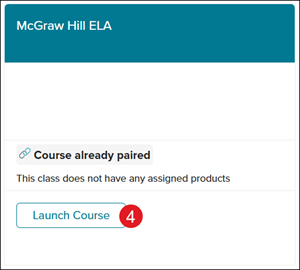
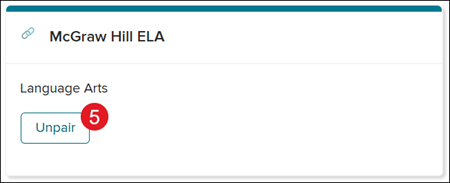
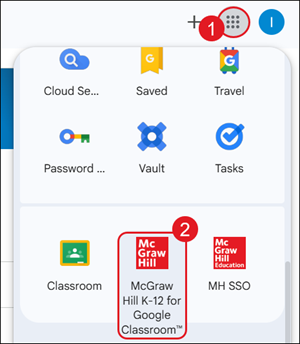
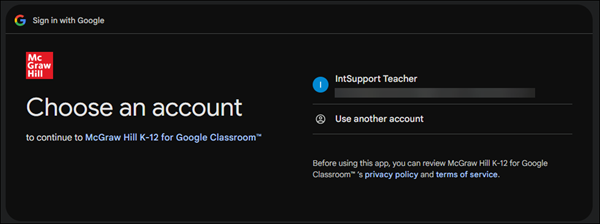
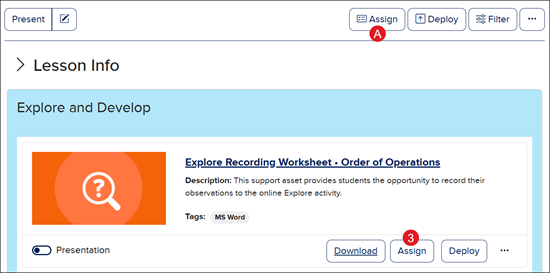
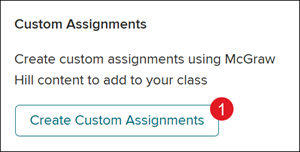
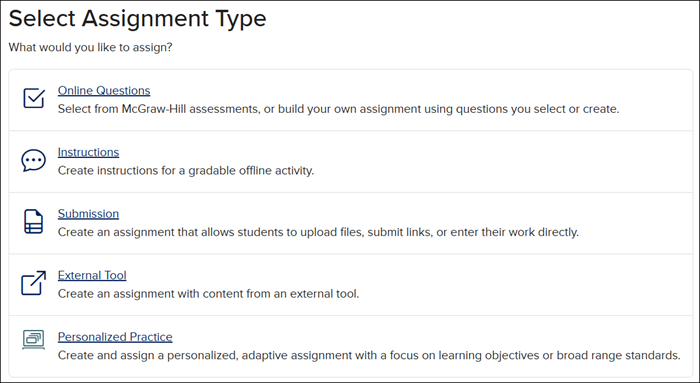
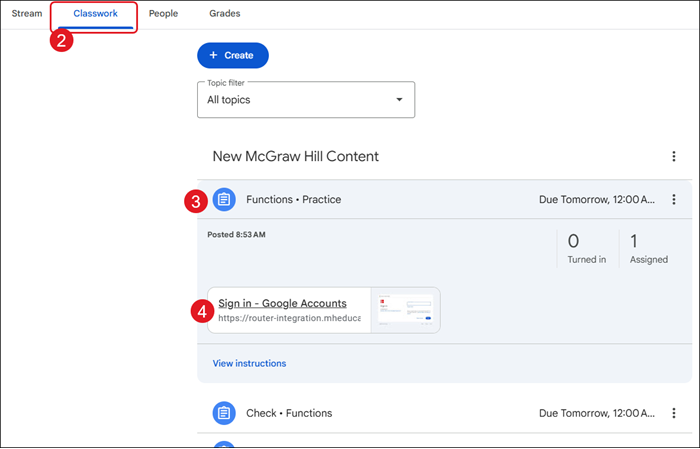
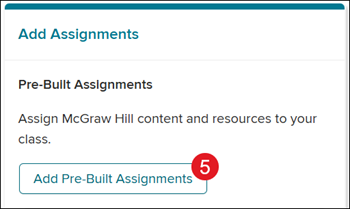
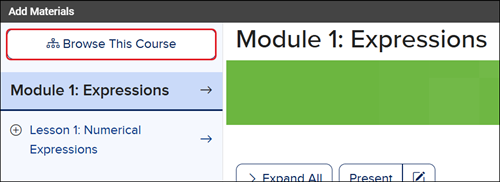
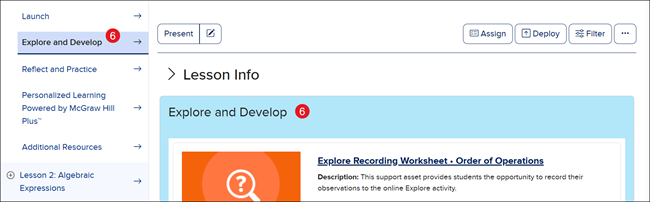
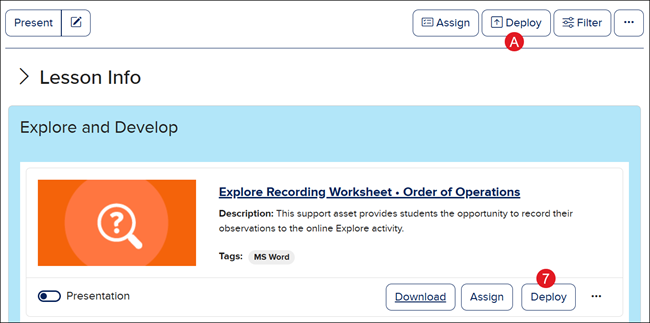
View the demo in a separate tab. View the Spanish version of the demo. View a video walkthrough. View a PDF copy of the article. The McGraw Hill K-12 for Google Classroom™ app syncs assignments and grades between the programs hosted on the McGraw Hill platform and your Google Classroom account. For Actively Learn specific steps, refer to the Actively Learn Assignment Sync and Grade Passback with Google Classroom™ article. For StudySync specific steps, refer to the StudySync Assignment Sync and Grade Passback with Google Classroom™ article. IMPORTANT! The integration reviewed in this article is not the same as the “Share with Google Classroom” options available within the McGraw Hill platform, nor do these integrations work together. You cannot use both. Attempting to use both will prevent both from working properly. Article Contents Class Pairing Unpairing Classes Create Assignments Pre-Built Assignments Custom Assignments View Assignments Adjust Assignment Settings Resync Assignments Deep-Linking Assets and Resources Grade Completed Assignments Resync Grades Troubleshooting Tips Class Pairing Prior to syncing assignments and grades between your McGraw Hill classes and Google Classroom, you need to pair your class(es). Your McGraw Hill class is automatically generated by your district’s nightly roster file sent to McGraw Hill. 1. Click on the Google apps icon at the top-right of the page. 2. Click on the McGraw Hill K-12 for Google Classroom™ app. Note: Installation of this app is completed by your District Administrator. If you do not see the app, please reach out to your District Administrator or Curriculum Coordinator. 3. If prompted, select the Google account you would like to use. 4. Click the Pair Course button on the class tile. 5. Click the Pair button. Important! Make sure to only click Pair on the course tile that matches the class you selected. Stop and Double Check! Take time to double check and ensure your class pairings are correct before moving on. Incorrect class pairings, and any resulting issues, is a common issue. 6. Click the Launch Course button to create assignments. Unpairing Classes If a class has been paired by mistake and/or incorrectly, you can unpair it. Only classes paired in error should be unpaired. Note: McGraw Hill content and assignments will not launch from Google Classroom if you unpair the class. Important! If a Google Classroom class is deleted prior to unpairing it from the McGraw Hill class, you will not be able to fully unpair it. You MUST first unpair the classes before deleting or unlinking the Google Classroom class. If you deleted a Google Classroom class before unpairing it, you will need to contact our DTS Customer Support team. 1. Click on the Google apps icon at the top-right of the page. 2. Click on the McGraw Hill K-12 for Google Classroom™ app. Note: Installation of this app is completed by your District Administrator. If you do not see the app, please reach out to your District Administrator or Curriculum Coordinator. 3. If prompted, select the Google account you would like to use. 4. Click the Launch Course button on the class tile. 5. Click the Unpair button. Create Assignments 1. Click on the Google apps icon at the top-right of the page. 2. Click on the McGraw Hill K-12 for Google Classroom™ app. Note: Installation of this app is completed by your District Administrator. If you do not see the app, please reach out to your District Administrator or Curriculum Coordinator. 3. If prompted, select the Google account you would like to use. 4. Click the Launch Course button on the class tile. Pre-Built Assignments 1. On the Add Assignments tile, click the Add Pre-Built Assignments button. The last selected Chapter/Unit/Lesson will open by default. Click the Browse This Course button to navigate to a different location within the program. 2. Click on a blade or click on an option in the Course Navigation Panel on the left to view the available resources. 3. Click the Assign button on a resource tile to assign an individual resource. Click the Assign (A) button at the top-right of the page to assign multiple resources at one time. For in-depth instruction on how to create individual assignments, refer to the Create Open Learning Assignments article. For in-depth instruction on how to create bulk assignments, refer to the Create Bulk Open Learning Assignments article. Once you've successfully created all the assignments you want, close the tab to navigate back to Google Classroom. Custom Assignments 1. On the Add Assignments tile, click the Create Custom Assignments button. 2. Select the Assignment Type. For in-depth instruction on creating Instruction, Submission, and External Tool assignments, refer to the Create Open Learning Assignments article. For in-depth instruction on creating Online Questions assignments, refer to the Assign McGraw Hill Assessments article. For in-depth instruction on creating Personalized Learning/SmartBook/LearnSmart assignments, refer to the Create Open Learning SmartBook® or LearnSmart® Assignments article. Note: Personalized Learning/SmartBook/LearnSmart is only available for select programs. Once you've successfully created all the assignments you want, close the tab to navigate back to Google Classroom. View Assignments 1. From your Classroom page, click on the class name. 2. Click on Classwork. 3. Click on the assignment blade to expand. 4. Click the Sign in – Google Accounts button. The assignment will open in a new tab on the my.mheducation.com site. Note: It may take 2-3 minutes for assignments to appear for students and before the assignment can be successfully launched within Google Classroom. If you attempt to launch the assignment too quickly after creation, both students and teachers will receive a "CI2" error message. Adjust Assignment Settings Important! If you need to later make adjustments to the settings of an assignment, you must complete these changes within the McGraw Hill platform directly, or by launching the assignment as a teacher in Google Classroom. If you attempt to make assignment edits within Google Classroom directly, they will not be reflected within McGraw Hill and may result in stopping the assignment from functioning in Google Classroom. 1. From your Classroom page, click on the class name. 2. Click on Classwork. 3. Click on the assignment blade to expand. 4. Click the Sign in – Google Accounts button. The assignment will open in a new tab on the my.mheducation.com site. 5. Click the Settings tab (for Open Learning programs). For Wonders, refer to the Manage Assignments in Wonders/Maravillas article for steps on making edits to assignment settings. 6. Make preferred changes to the settings. Note: Depending on the assignment type, certain setting options may not be available as they were when first creating the assignment. 7. Click the Save button. Alternative Option: Edit from McGraw Hill Platform 1. Click on the Google apps icon at the top-right of the page. 2. Click on the McGraw Hill SSO app. 3. Click the Assignments button on the class tile for Open Learning programs. If accessing Wonders or Open Court Reading c2023 or older, you will need to click on the class tile. 4. Navigate to the assignment. 5. Make preferred changes to the settings. 6. Click the Save button. These changes will not be reflected in Google Classroom until you have resynced the assignments. Resync Assignments Resyncing assignments is an option available within the McGraw Hill K-12 for Google Classroom™ app. This option syncs all assignments and their settings from McGraw Hill into Google Classroom. This allows you to sync settings back into Google Classroom if you made any changes to your assignments. This also gives teachers a direct way to manually trigger the assignment syncing process in the event any assignments have not automatically appeared in Google Classroom. 1. Click on the Google apps icon at the top-right of the page. 2. Click on the McGraw Hill K-12 for Google Classroom™ app. Note: Installation of this app is completed by your District Administrator. If you do not see the app, please reach out to your District Administrator or Curriculum Coordinator. 3. If prompted, select the Google account you would like to use. 4. Click the Launch Course button on the class tile. 5. Click the Sync Assignments button. McGraw Hill will automatically check to see if there are any assignments that have not yet been completed synced to Google Classroom. These will be listed in the area below the Sync Assignments button. Deep-Linking Assets and Resources In addition to creating assignments, you can also create deep-links to McGraw Hill assets and resources within Google Classroom. This allows you to create links for users to launch resources in Google Classroom without necessarily making them into assignments. 1. Click on the Google apps icon at the top-right of the page. 2. Click on the McGraw Hill K-12 for Google Classroom™ app. Note: Installation of this app is completed by your District Administrator. If you do not see the app, please reach out to your District Administrator or Curriculum Coordinator. 3. If prompted, select the Google account you would like to use. 4. Click the Launch Course button on the class tile. 5. On the Add Assignments tile, click the Add Pre-Built Assignments button. The last selected Chapter/Unit/Lesson will open by default. Click the Browse This Course button to navigate to a different location within the program. 6. Click on a blade or click on an option in the Course Navigation Panel on the left to view the available resources. 7. Click the Deploy button on a resource tile to assign an individual resource. Click the Deploy (A) button at the top-right of the page to assign multiple resources at one time. These resources will now appear as links within your Google Classroom course. Grade Completed Assignments Assignments can be graded from within Google Classroom by launching the assignment. As a teacher, launching the assignment automatically brings you to the assignment submissions page in a new tab. Important! Student should access their first assignment through Google Classroom. This allows the McGraw Hill platform to begin syncing grades for that student to Google Classroom. The student does not need to complete the assignment within Google Classroom if they would rather complete it within the McGraw Hill platform, they just need to launch it from the Google Classroom platform. After the initial launch, students can then access and complete assignments through Google Classroom or the McGraw Hill platform. 1. From your Classroom page, click on the class name. 2. Click on Classwork. 3. Click on the assignment blade to expand. 4. Click the Sign in – Google Accounts button. The assignment will open in a new tab on the my.mheducation.com site. 5. Depending on the assignment type, click the View or View Scoresheet link in the Student Work column. For in-depth instructions on grading different Open Learning assignments, refer to the Grade Open Learning Assignments article. For Wonders assignments, refer to the Manage Assignments in Wonders/Maravillas article. Grades will automatically sync to the Google Classroom gradebook and can be viewed by clicking the Grades tab. Resync Grades 1. Click on the Google apps icon at the top-right of the page. 2. Click on the McGraw Hill K-12 for Google Classroom™ app. Note: Installation of this app is completed by your District Administrator. If you do not see the app, please reach out to your District Administrator or Curriculum Coordinator. 3. If prompted, select the Google account you would like to use. 4. Click the Launch Course button on the class tile. 5. On the Re-Sync Grades tile, checkmark the assignment(s) that needs to be resynced. 6. Click the Sync Grades button. Troubleshooting Tips Error Messages on Student Launch Common Errors: ID5, ER4, SE4 Most likely caused by a rostering mismatch between Google Classroom and McGraw Hill. 1. Ensure your class(es) are paired correctly. If your class(es) are not paired correctly, then the rosters will not match. 2. Ensure the student is properly enrolled in the class within McGraw Hill. New students may take several days after enrollment to sync into McGraw Hill. 3. Ensure you are not using “Student View” in Google Classroom. This view will not work and is not indicative of the experience students will have. "CI2" Error Message Most of the time this is caused when launching an assignment too quickly after creation. 1. Ensure you and students are waiting 2-3 minutes after assignment creation to launch it. 2. Ensure the assignment “start date” has passed. Assignments with future start dates cannot be launched by students. "L500" Error Message Often indicative of a greater issue with the district's installation of the app. The issue may exist on either the district side or the McGraw Hill side. Reach out to your District Administrator contact support for this error. Assignments and Grades Not Syncing Properly Most of the time this is caused by incorrect class pairings. Ensure your class(es) are paired correctly by reviewing the class pairings section. If your class(es) are not paired correctly, assignments and grades will not function as needed and may result in additional errors. Grades Not Syncing for Some Students If only some students within a class do not have grades populating in the Google Classroom gradebook, but other students do, this indicates some students have not launched an assignment directly from within Google Classroom this school year. Ensure the student launches any active assignment from directly within Google Classroom. You can then manually sync grades through the McGraw Hill tool to populate all grades for this student within the Google Classroom gradebook.
dts
PreK-12, Customer Support, Classroom Teacher, Preschool, Elementary School, Middle School, High School, SSO & Auto-Rostering, Core, Intervention, Supplemental, AP, Honors & Electives, Career & Technical Education, Literacy, Math, Science, Social Studies, Health, Visual & Performing Arts, World Languages, AP Biology, AP Chemistry, AP History & Geography, AP Psychology, AP Economics, AP African American Studies, AP Precalculus, AP Statistics, AP Computer Science, AP Language and Composition, AP Public Speaking, AP Music Theory, 5 Steps to a 5 - AP Test Prep, Glencoe Health 2022, Teen Health 2021, Arrive Math, Building Blocks 2024, Building Blocks PreK 2025, Number Worlds 2024, SRA Reading Laboratory 2025, SRA Reading Mastery Transformations, Actively Learn, McGraw Hill Literacy Emerge!, McGraw Hill Literacy Summit!, McGraw Hill Literacy Soar!, Open Court Reading 2025, StudySync 2021, CA Reveal Math (K-12), Illustrative Math, Reveal Math (K-12), CA Inspire Science 2020, FL Science 2025 (K-12), Inspire Science 2020, TN Science (K-12), TX Science 2025 (K-12), CA Impact 2019, FL Social Studies 2024 (K-12), Impact Social Studies, McGraw Hill Social Studies, All Sorts 2026 (K-5), Asi se Dice 2024, CTE - Business, Marketing, and Finance, CTE - Health Science, CTE - Computing and Technology, CTE - Agriculture, CTE - Culinary Arts, CTE - Early Childhood Education, CTE - Criminal Justice, Open Court Reading 2016, 2018, 2023, Wonders Balanced Literacy 2016, Maravillas 2020 & 2017, Music! Its Role, McGraw Hill My Math 2018, Networks 2018, OCR Foundational Skills Kit, OCR Word Analysis Kit, Spotlight on Music, Wonders 2023 2020 2017, Texas Math, Assignment Sync & Grade Passback, Grades & Assignments, Google Classroom™, User Guide