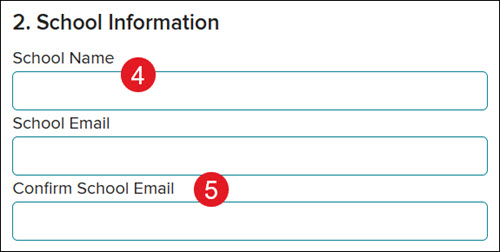
5. Enter your School Email and enter the same in the Confirm School Email field.
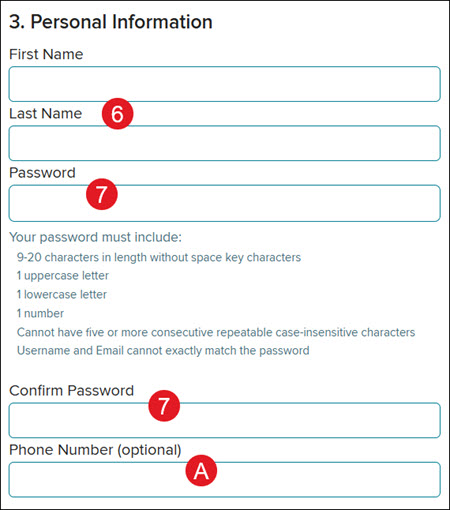
6. Under Personal Information, enter your First Name and Last Name.
7. Enter a Password and enter the same into the Confirm Password field.
Password requirements:
9-20 characters
No spaces
1 uppercase letter
1 lowercase letter
1 number
A. Adding a Phone Number is optional.
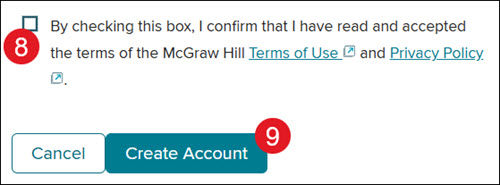
8. Check the box to accept the McGraw Hill Terms of Use and Privacy Policy.
9. Click the Create Account button to complete the registration process.
A verification email is sent to the email address you provided during registration. Click the link in the email to verify your new account.
networks
mh-social-studies
aleks-adventure
asi-se-dice
arrive-math
actively-learn
inspire-science
studysync
aleks
glencoe-math
open-court-reading
glencoe-health
impact
building-blocks
wonders
mcgraw-hill-pre-algebra
everyday-math
all-sorts
redbird
wonderworks
number-worlds
glencoe-science
core-plus-math
reveal-math
teen-health
my-math
2inform
mcgraw-hill-literacy
ocr-foundational-skills-kit
mcgraw-hill-science
wow
iscience
maravillas
spotlight-on-music
direct-instruction
mcgraw-hill-health
achieve3000-literacy
music-its-role
instructor
prek-12
Networks 2014 (K-5), McGraw Hill Social Studies, ALEKS Adventure, Asi se Dice 2024, Arrive Math, Actively Learn, Customer Support, Inspire Science 2020, StudySync 2015 & 2017, Middle School, ALEKS, Glencoe Algebra 1 2014, High School, Open Court Reading, Glencoe Health 2022, CA Impact 2019, Glencoe Algebra 1 2018, Building Blocks 2015, Wonders 2023 2020 2017, Networks 2018, CA Inspire Science 2020, Pre-Algebra 2012, PreK-12, Everyday Mathematics 4 (K-6), All Sorts 2026 (K-5), Redbird, Wonders EL 2016, Supplemental, Visual & Performing Arts, Inspire Science 2017, Health, Getting Started & Orientation, Literacy, Social Studies, Glencoe Math Course 1, Wonders 2014, WonderWorks 2022 & 2014, Glencoe Math Course 2, Glencoe Math Course 3, Number Worlds 2015, Glencoe Science, Core, Core Plus Math 2015, AP, Honors & Electives, CA Reveal Math (K-12), Teen Health 2021, FL Social Studies 2024 (K-12), Building Blocks PreK 2025, McGraw Hill My Math 2013 & 2016, 2Inform, Glencoe Algebra 2 2014, Networks 2014 & 2016, McGraw Hill Literacy, OCR Foundational Skills Kit, TX Science 2025 (K-12), StudySync 2021, World of Wonders 2017, iScience 2017, Number Worlds 2024, Maravillas 2020 & 2017, Spotlight on Music, Direct Login & Manual-Rostering, Classroom Teacher, Glencoe Science 2017, Elementary School, FL Science 2025 (K-12), World Languages, Math, Asi se Dice 2016, Direct Instruction, Glenoce Algebra 2 2018, Intervention, OCR Word Analysis Kit, McGraw Hill Health 2014, Glencoe Health 2014, Building Blocks 2024, Wonders Balanced Literacy 2016, Log-In & Passwords, McGraw Hill My Math 2018, Glencoe Math, Science, Preschool, Achieve3000 Literacy, Music! Its Role, Account Management, User Management, Direct Login & Auto-Rostering
dts
2026-03-24T18:32:04.075-03:00
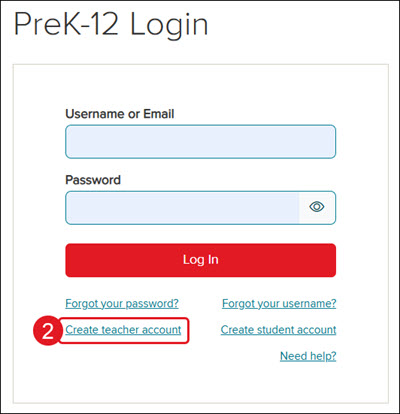
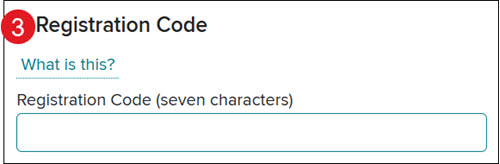
For a full page view of the demo, click here. For a Spanish version of the demo, click here. To view the video of the process, click here. 1. Go to my.mheducation.com. 2. Click the Create teacher account link under the login fields. 3. Enter the 7-character Registration Code provided by your administrator. 4. Enter your School Name field and select the correct option that appears in the drop-down. If your school does not show in the drop-down, verify you are spelling the school name correctly. If you still cannot find your school listed, please contact our PreK-12 Digital Technical Support team for further assistance. 5. Enter your School Email and enter the same in the Confirm School Email field. 6. Under Personal Information, enter your First Name and Last Name. 7. Enter a Password and enter the same into the Confirm Password field. Password requirements: 9-20 characters No spaces 1 uppercase letter 1 lowercase letter 1 number A. Adding a Phone Number is optional. 8. Check the box to accept the McGraw Hill Terms of Use and Privacy Policy. 9. Click the Create Account button to complete the registration process. A verification email is sent to the email address you provided during registration. Click the link in the email to verify your new account.
Top
Regional Page Available
It looks like you're outside the United States. Do you want to see your regional version of this page?